

Update Apple account payment method
To update your payment method associated with your Apple ID do the following:
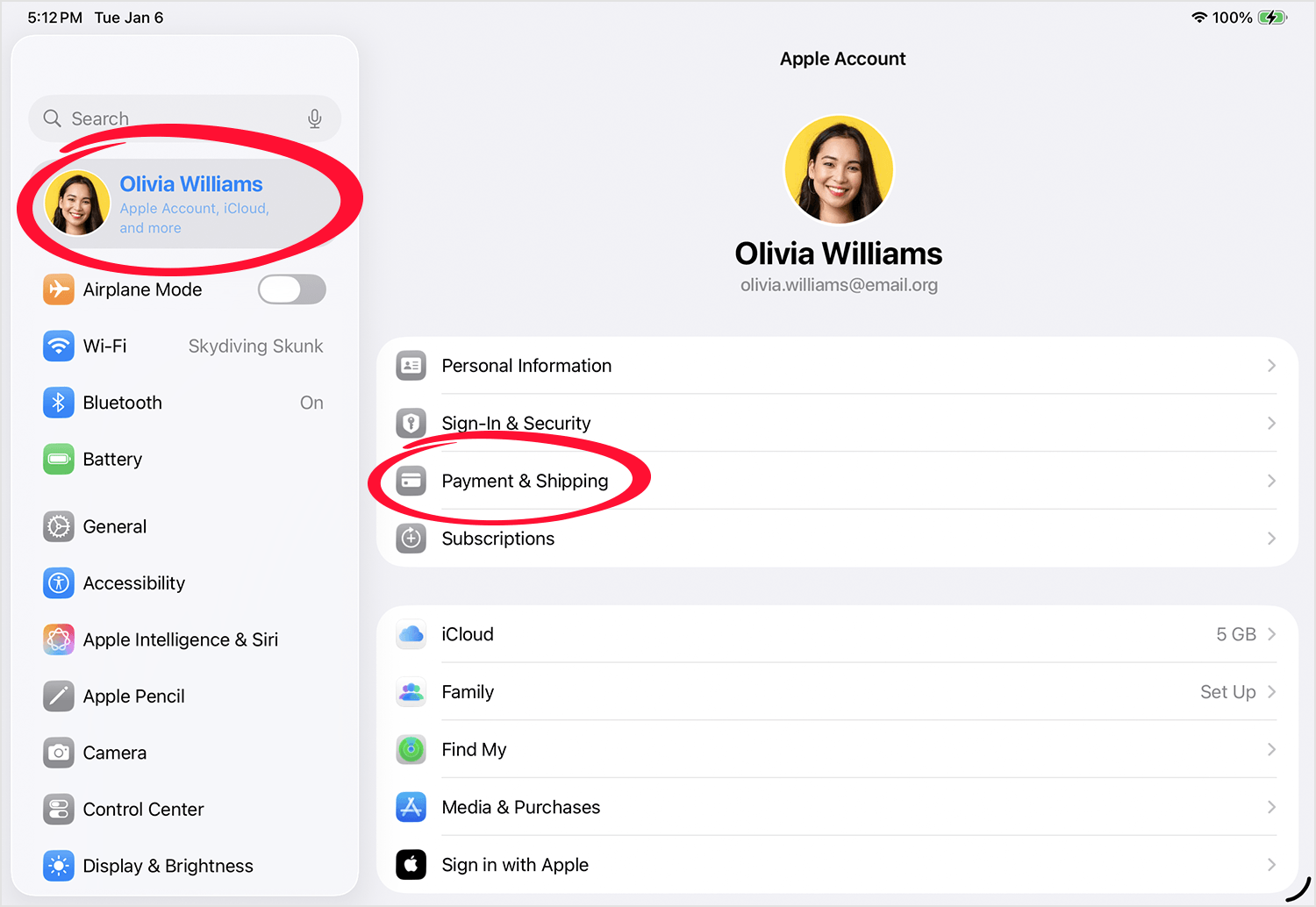
1. Open the Settings app on your iOS device or Mac.
2. Tap your name (at the top) to view your Apple account
3. Tap Payment & Shipping. You may need to enter your Apple ID password
4. Update your payment
For additional information on updating your Apple account payment method click the following link:
Add a payment method to your Apple Account
Update Little Bee Store payment method
To update your payment method associated with the Little Bee Store do the following:
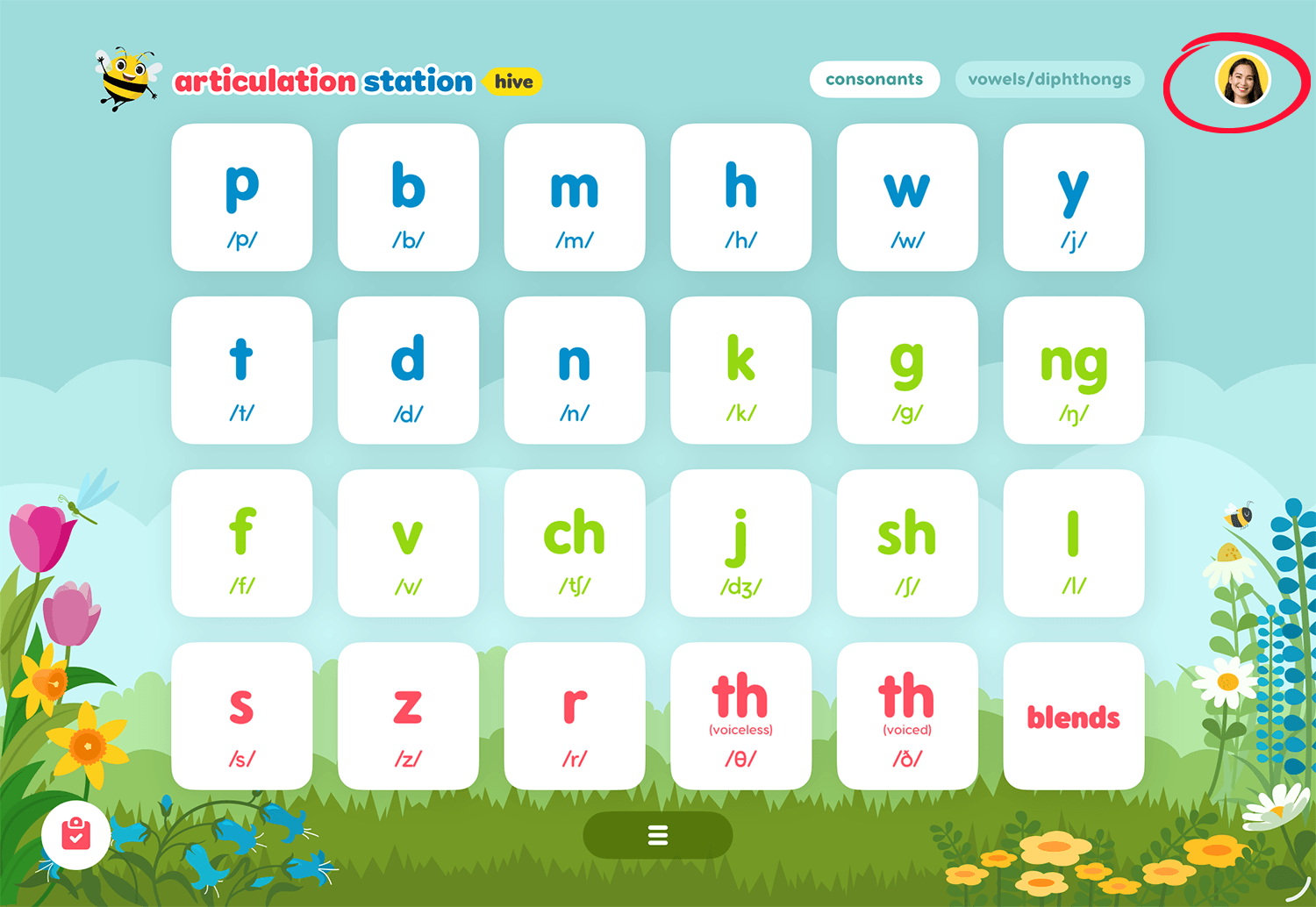
Tap on your user profile image from the home screen of any Little Bee Hive application.
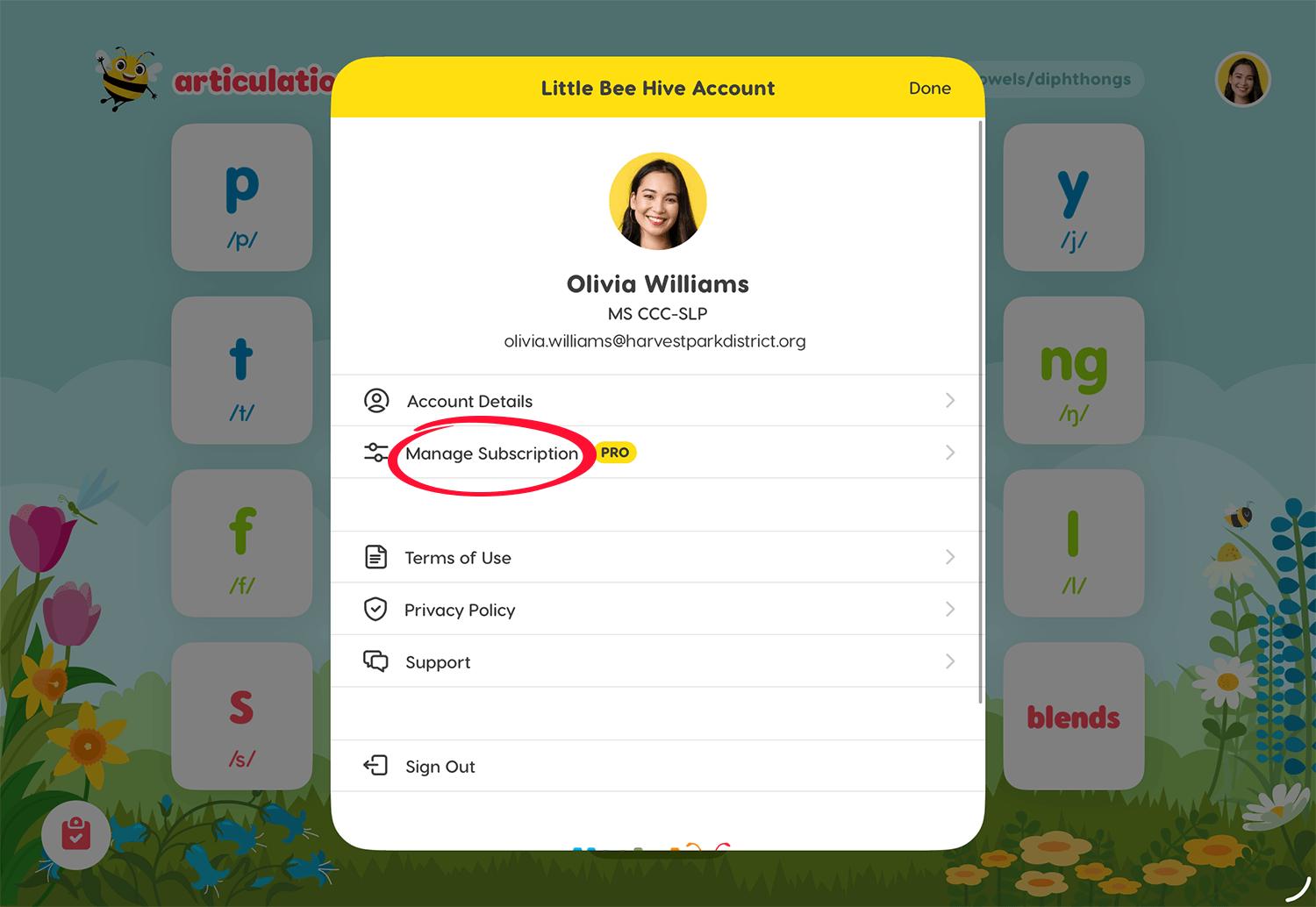
Then tap Manage Subscription to see the subscription details screen.
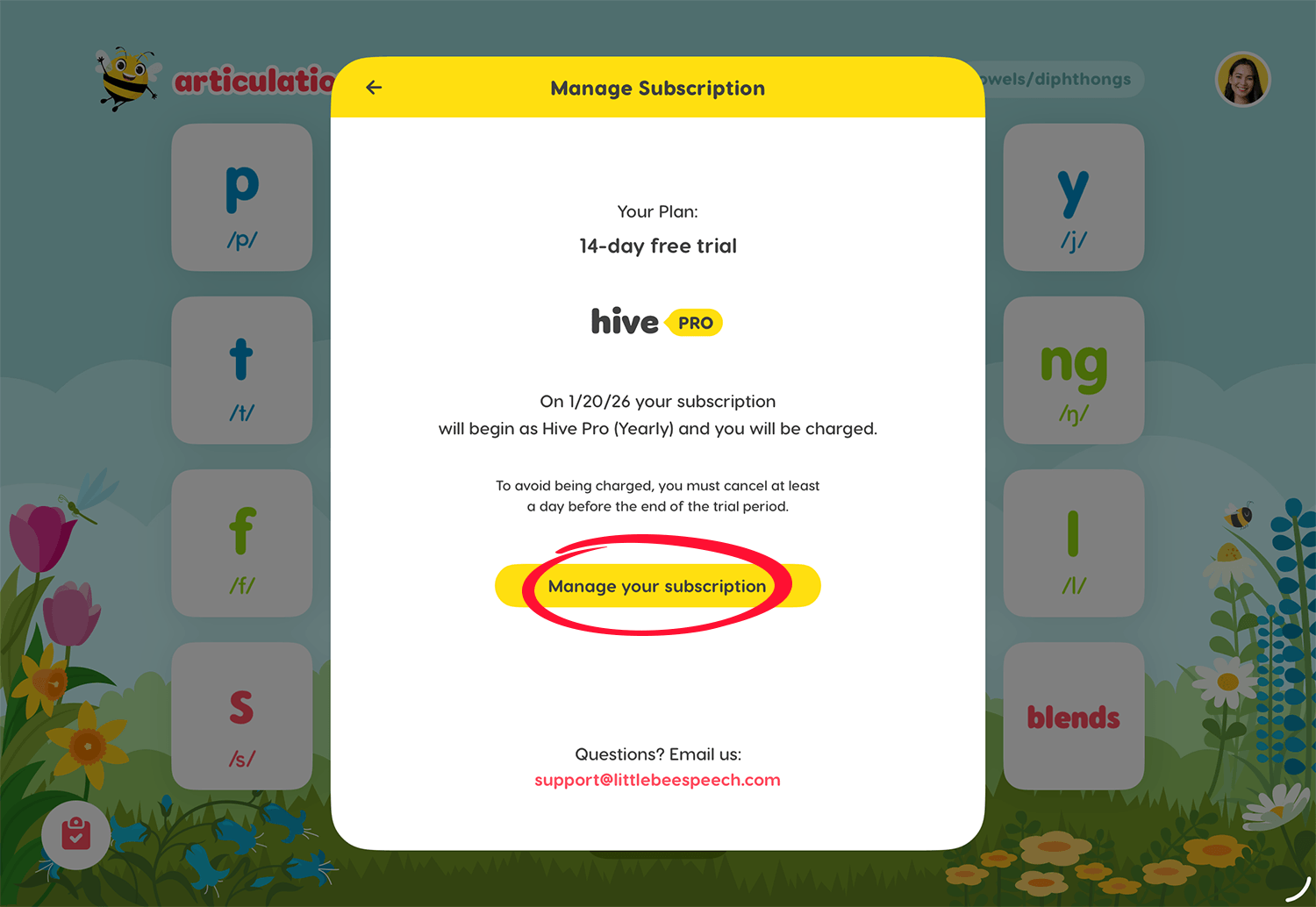
On the subscription details screen tap Manage your subscription.
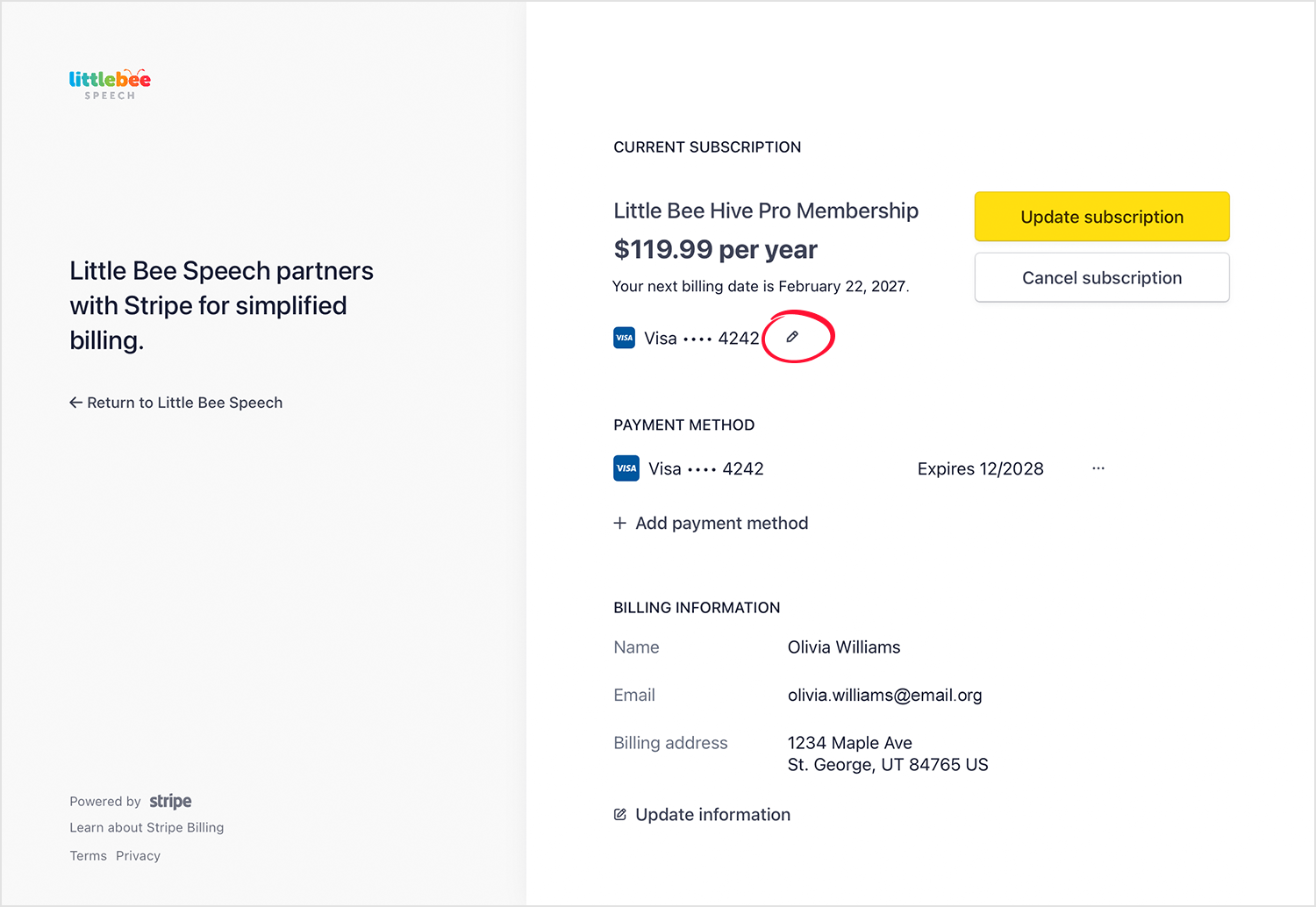
To select a different payment method tap the edit (pencil) icon next to the credit card number.
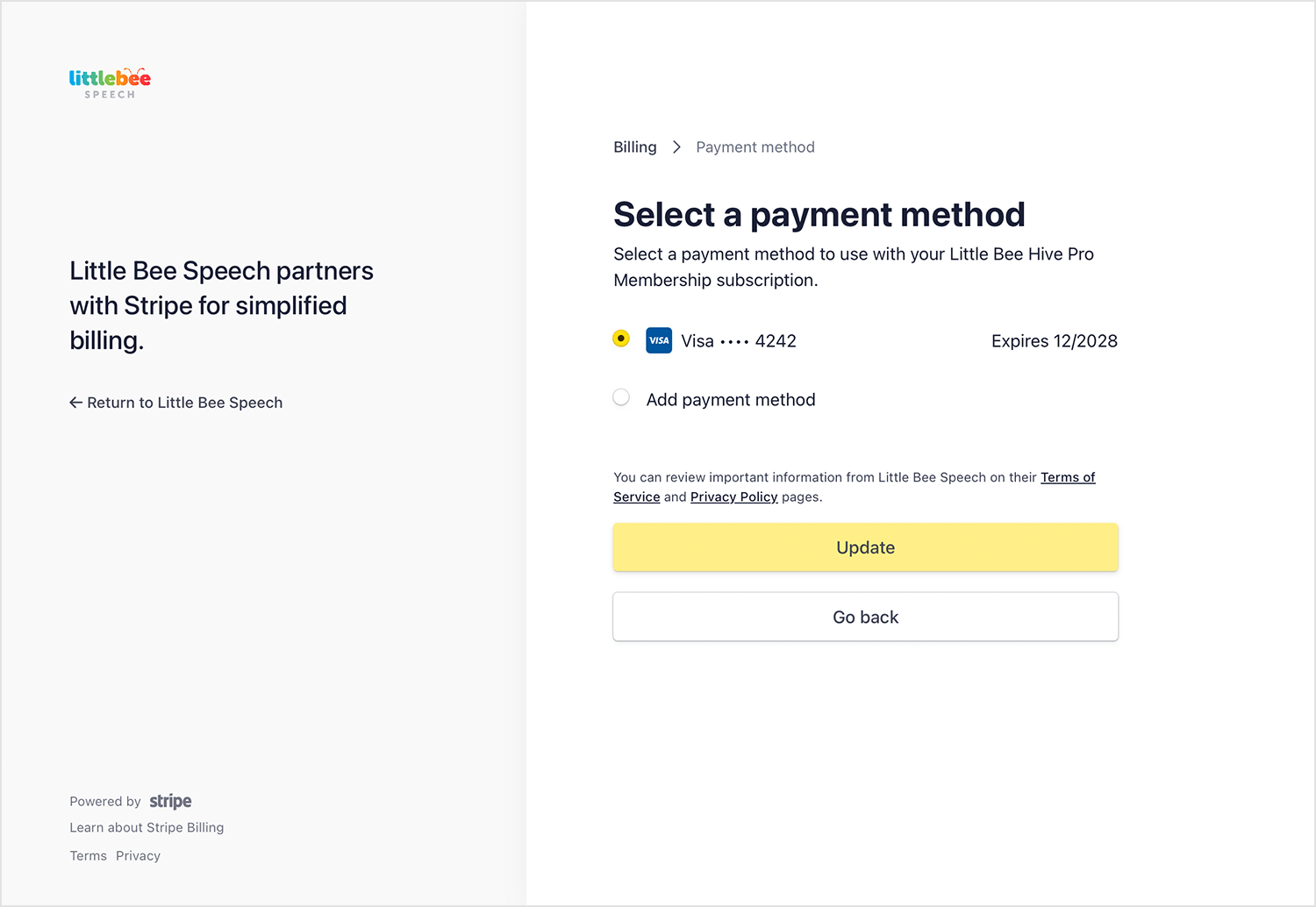
Select your preferred payment method or add a new payment method.
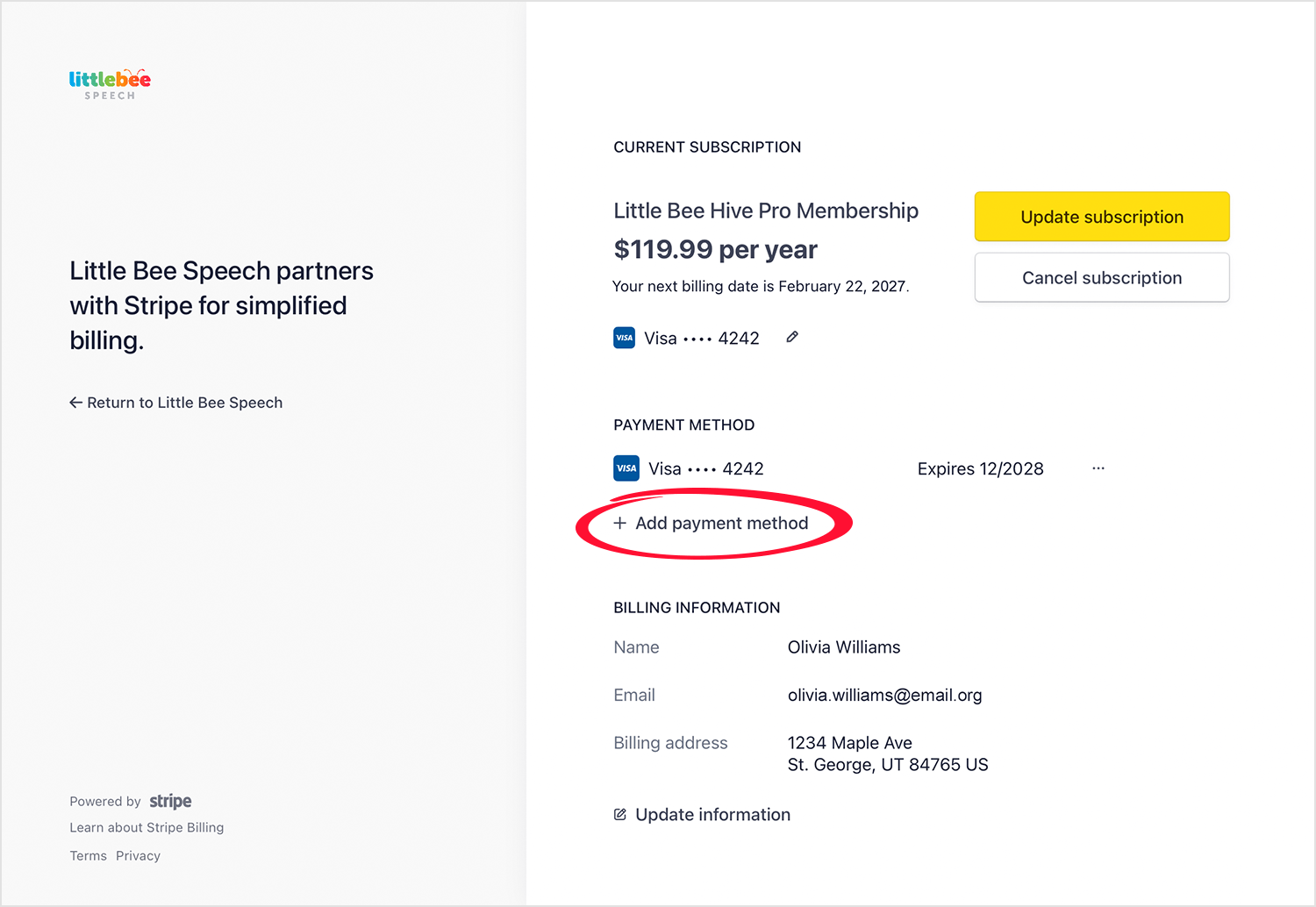
You can also tap Add payment method from the main account screen and add a new payment method.
If you have additional questions about updating your payment method please contact us: