

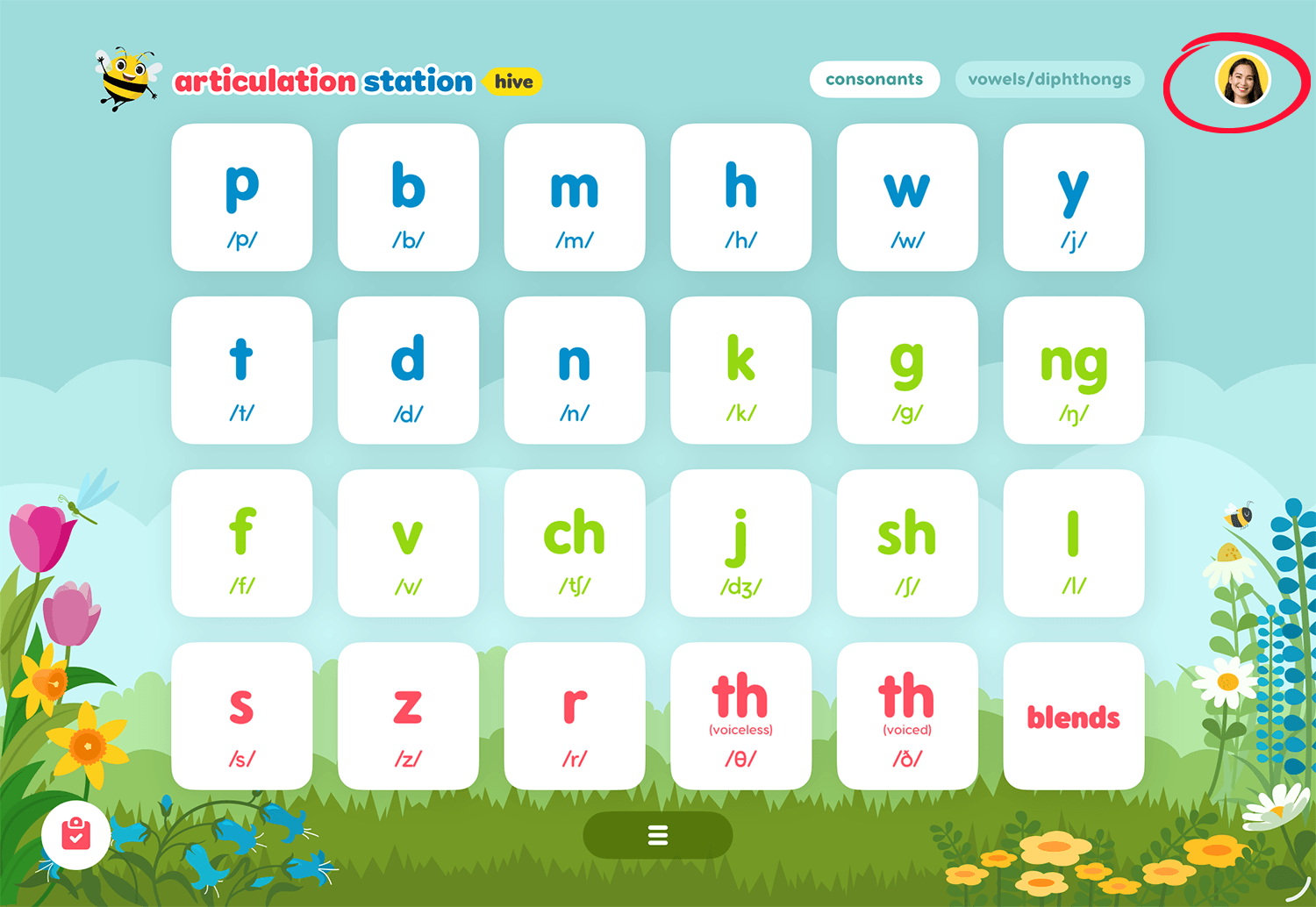
To cancel your subscription tap on your user profile image from the home screen of any Little Bee Hive application.
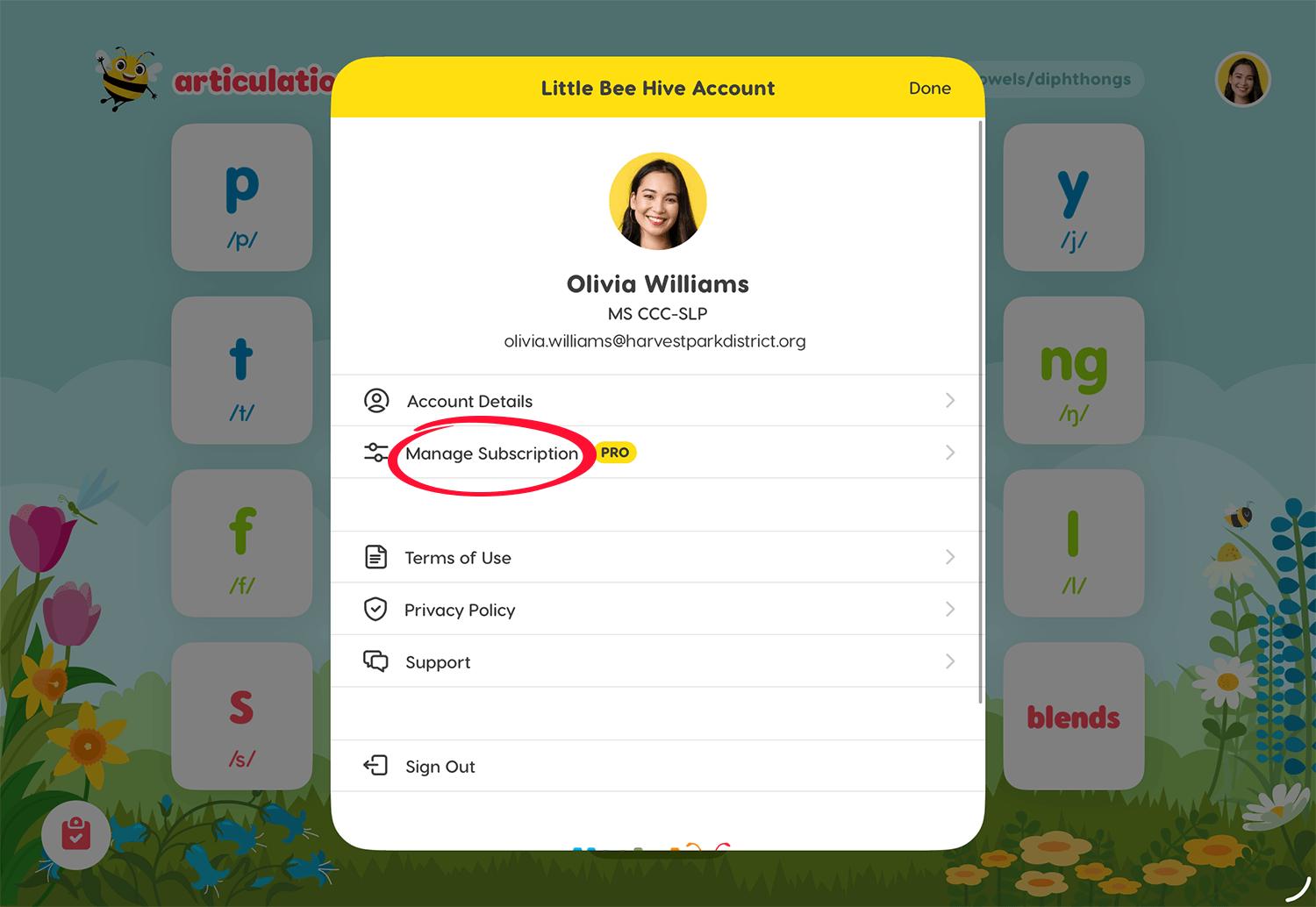
Then tap Manage Subscription to see the subscription details screen.
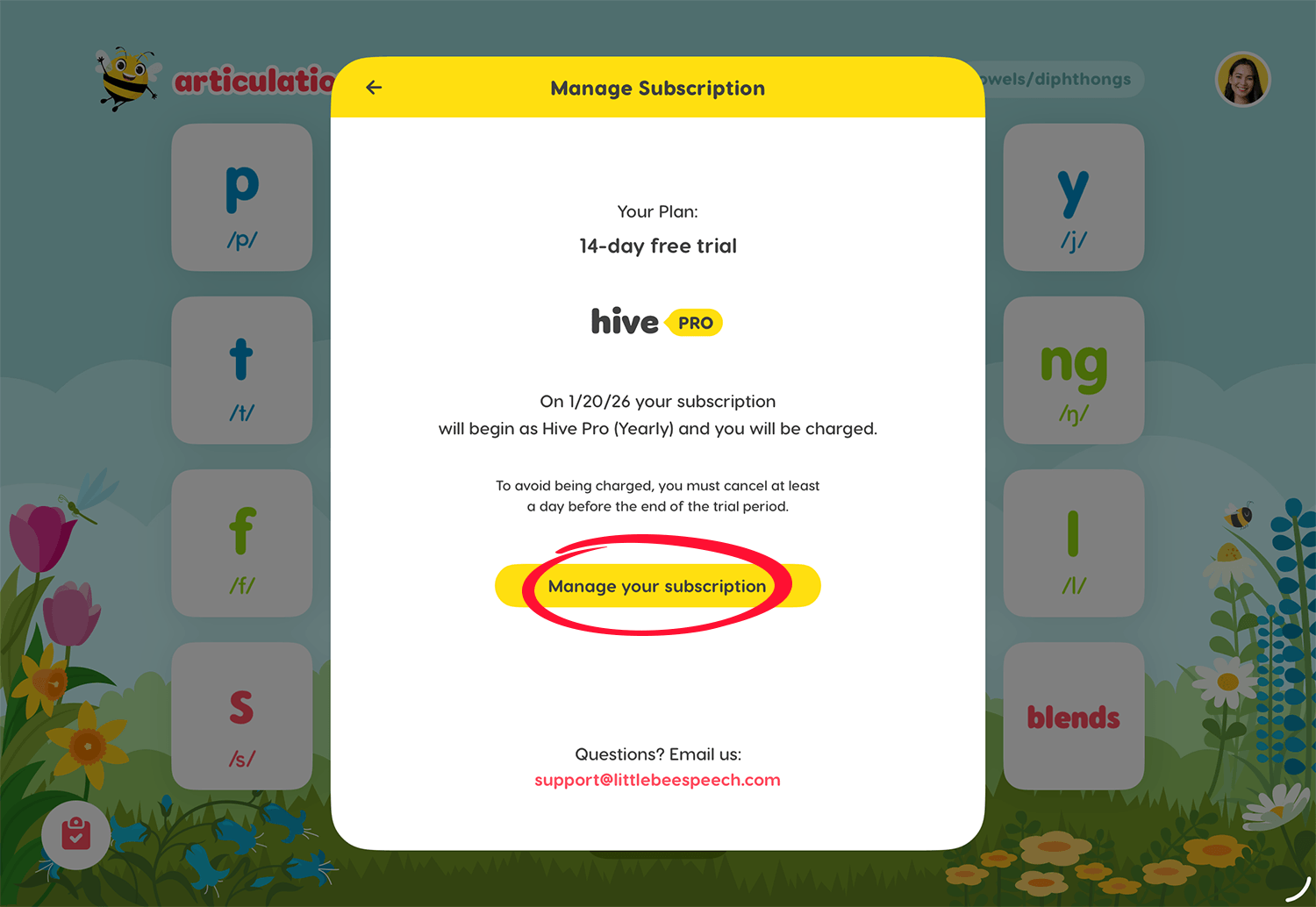
On the subscription details screen tap Manage your subscription
Cancelling your subscription via Apple
If you purchased your subscription through an Apple In-app purchase you will be taken to your Apple ID subscription settings.
Tap your Apple ID > Subscriptions, then tap on the subscription you want to cancel and tap Cancel Subscription.
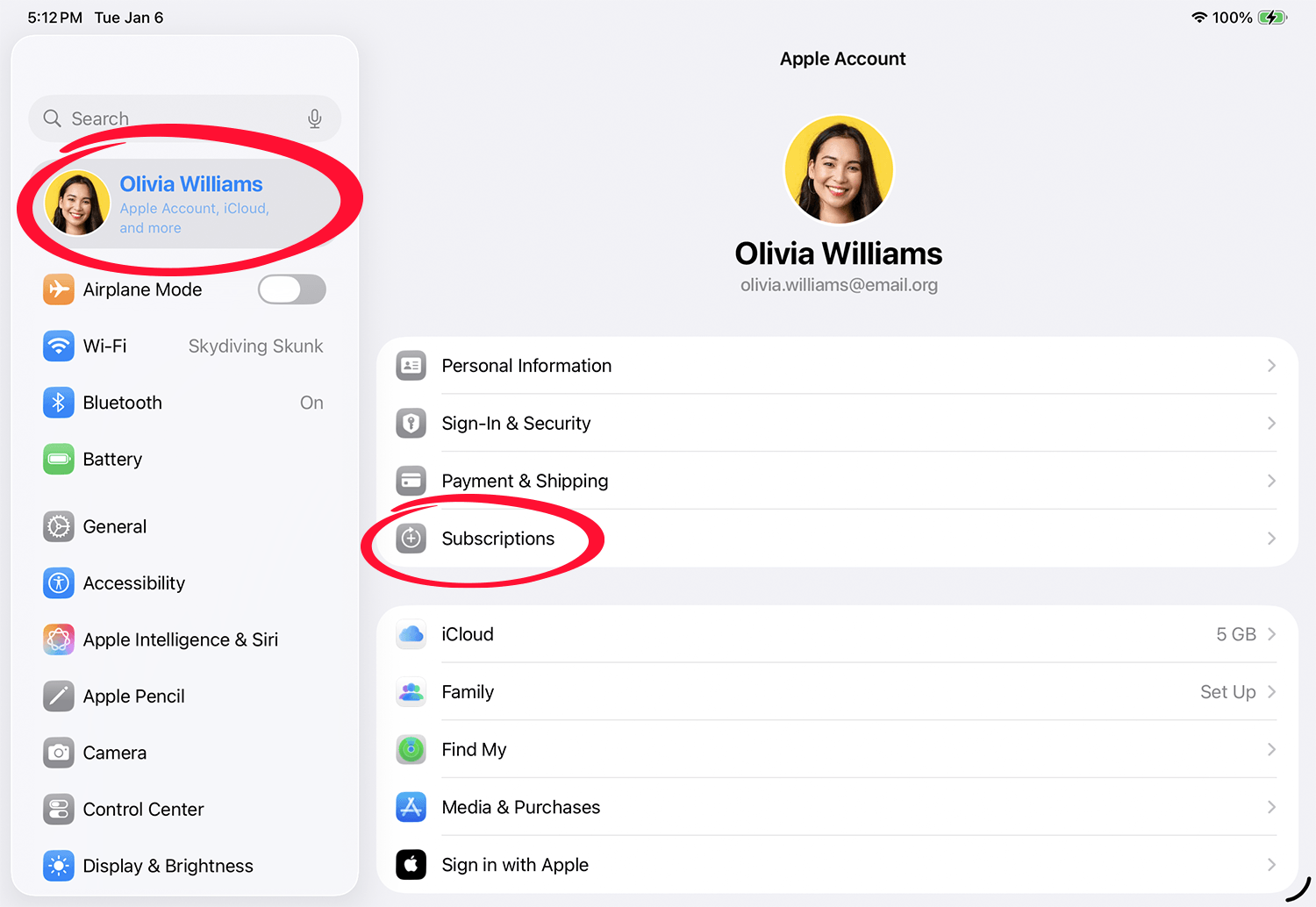
If you subscribed through an Apple In-app purchase you can also cancel your subscription directly in the Settings app on your iPad, iPhone or Mac (as shown in the screenshot above) without having to go through a Little Bee Hive app.
Note: After cancelling your subscription through Apple, you still have access until the end of your current subscription period.
For more information on cancelling or changing your subscription via Apple see the links below:
How to cancel a subscription from Apple.
Cancelling your subscription via the Little Bee Store (Stripe)
If you purchased directly through the Little Bee Store, either within a Little Bee Hive app or on our website (not an Apple in-app purchase) follow the steps below to cancel your subscription.
From the Manage Subscription screen tap Manage your subscription.
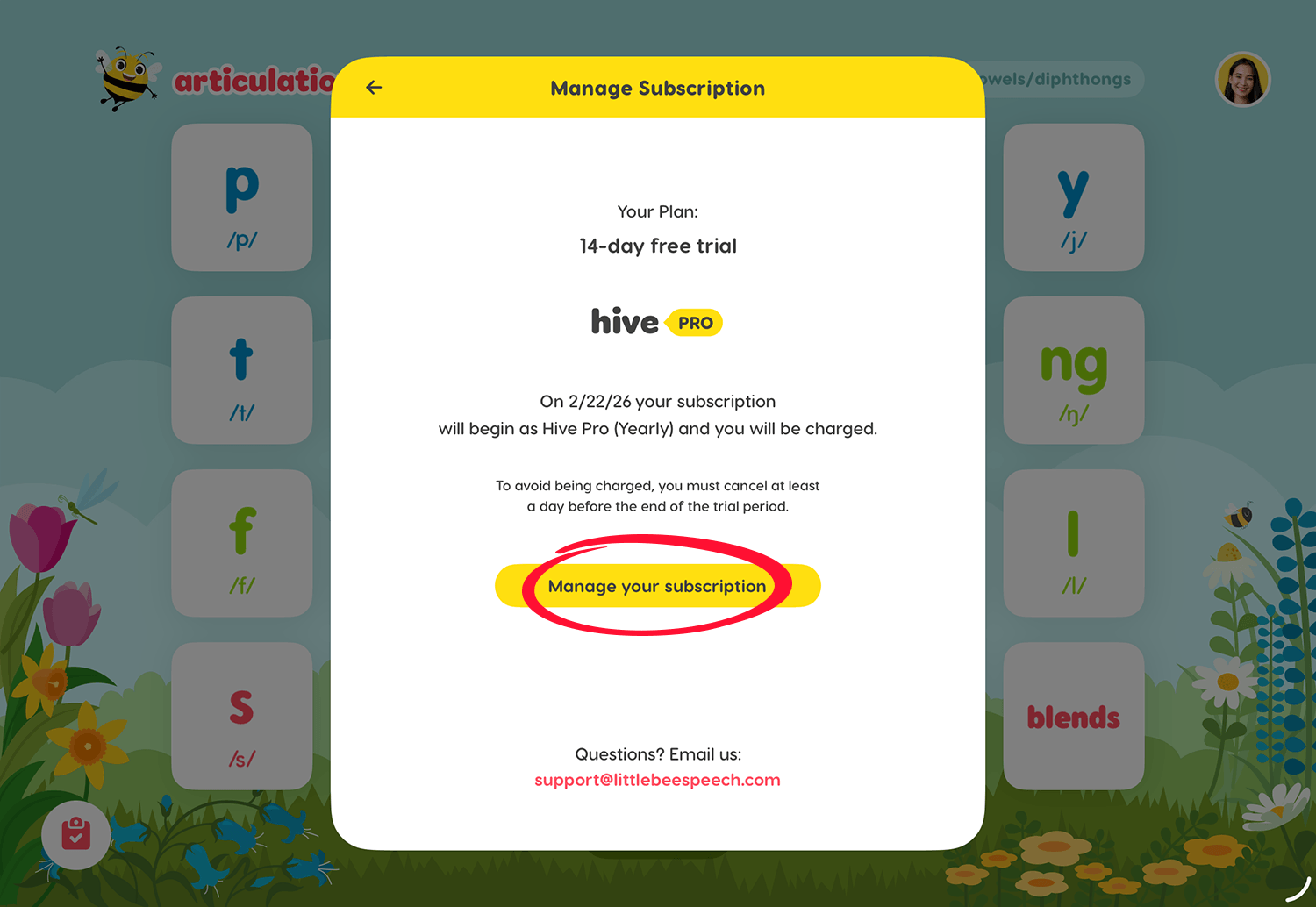
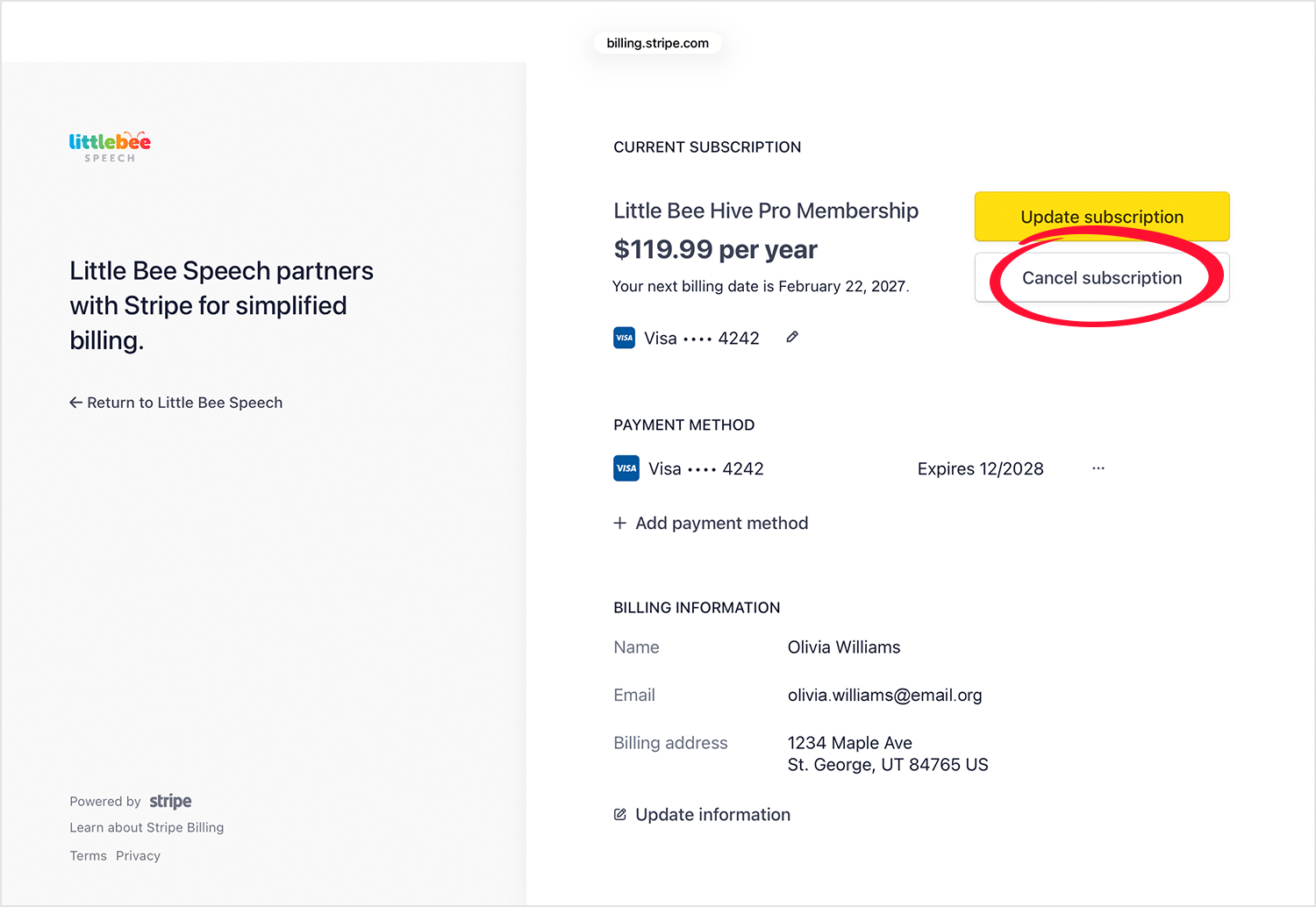
You will be taken to your subscription management screen. Tap Cancel subscription.
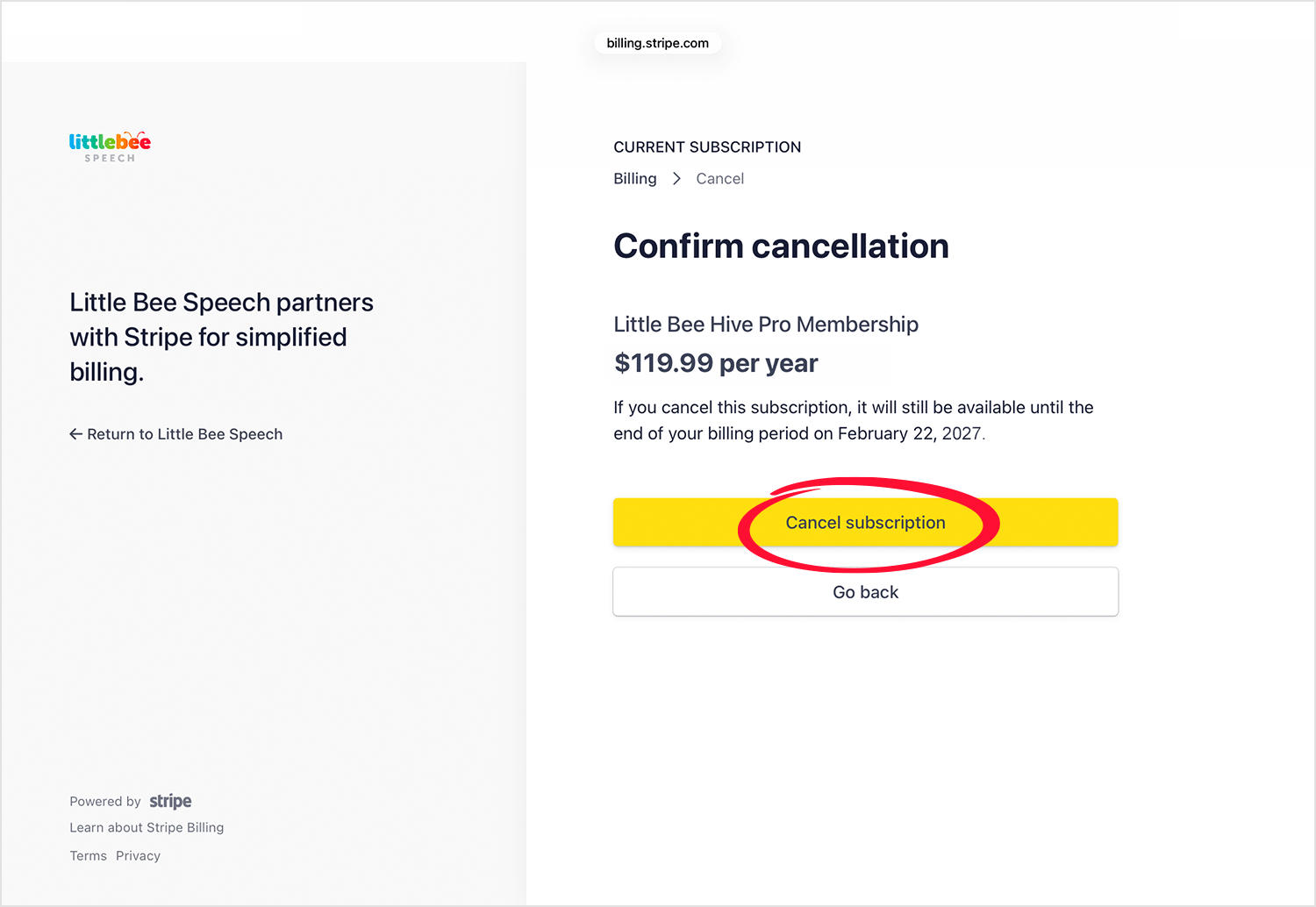
Confirm your cancellation by tapping Cancel subscription.
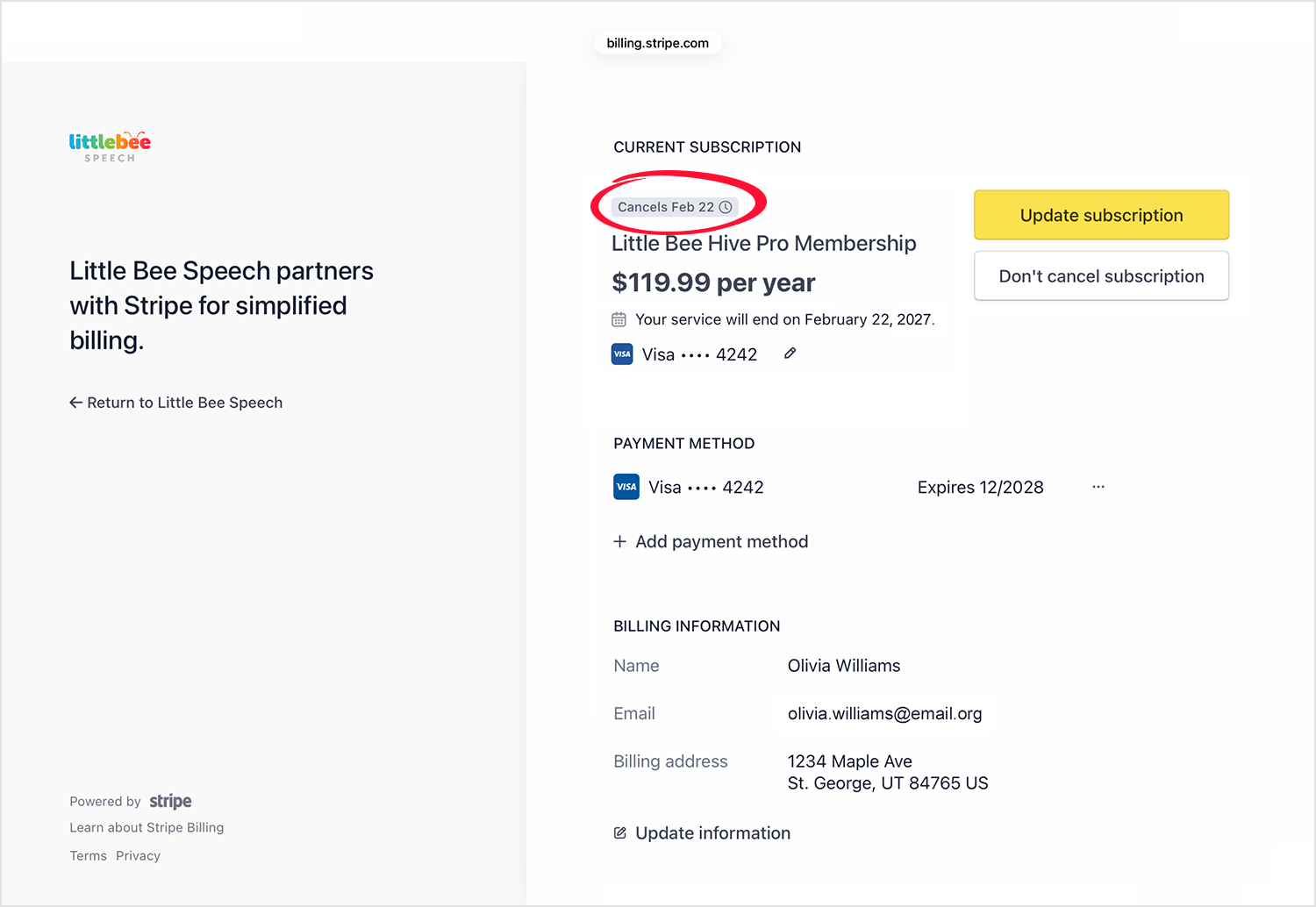
Your subscription is now cancelled. You will have access until the subscription cancellation date shown. You can reinstate your subscription by tapping Don't cancel my subscription.
For more information on cancelling your subscription contact us at: support@littlebeespeech.com