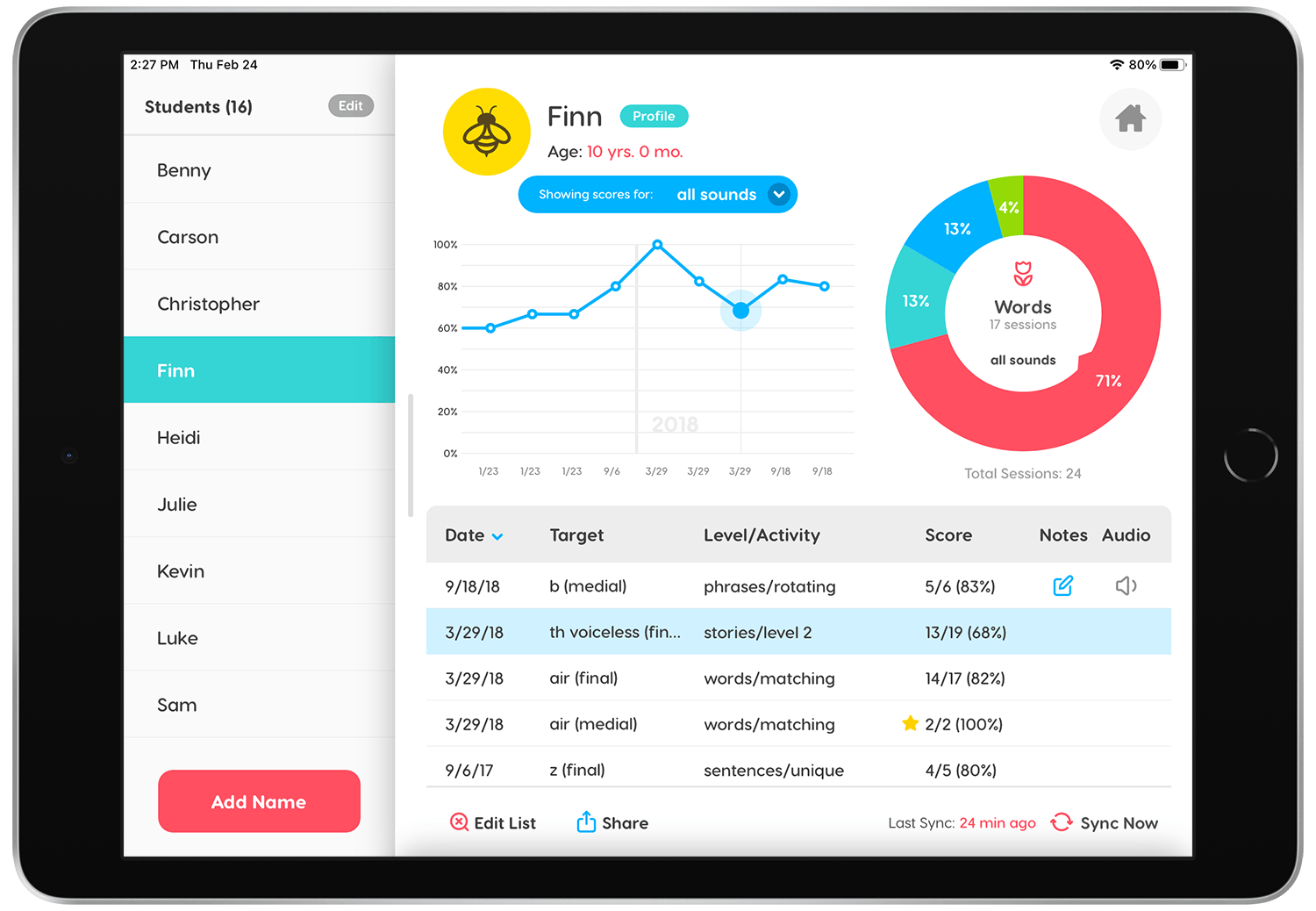

When you migrate your saved student scores from Articulation Station Pro Classic (or Articulation Station Classic) into Articulation Station Hive you will see your data visualized with graphs! This will allow you to see your student data in a more clear and effective way that will help you be more efficient in planning and setting goals with your learners.
Important: Be sure you have a good internet connection before you begin the data migration process then follow the steps as outlined below.
Step 1.
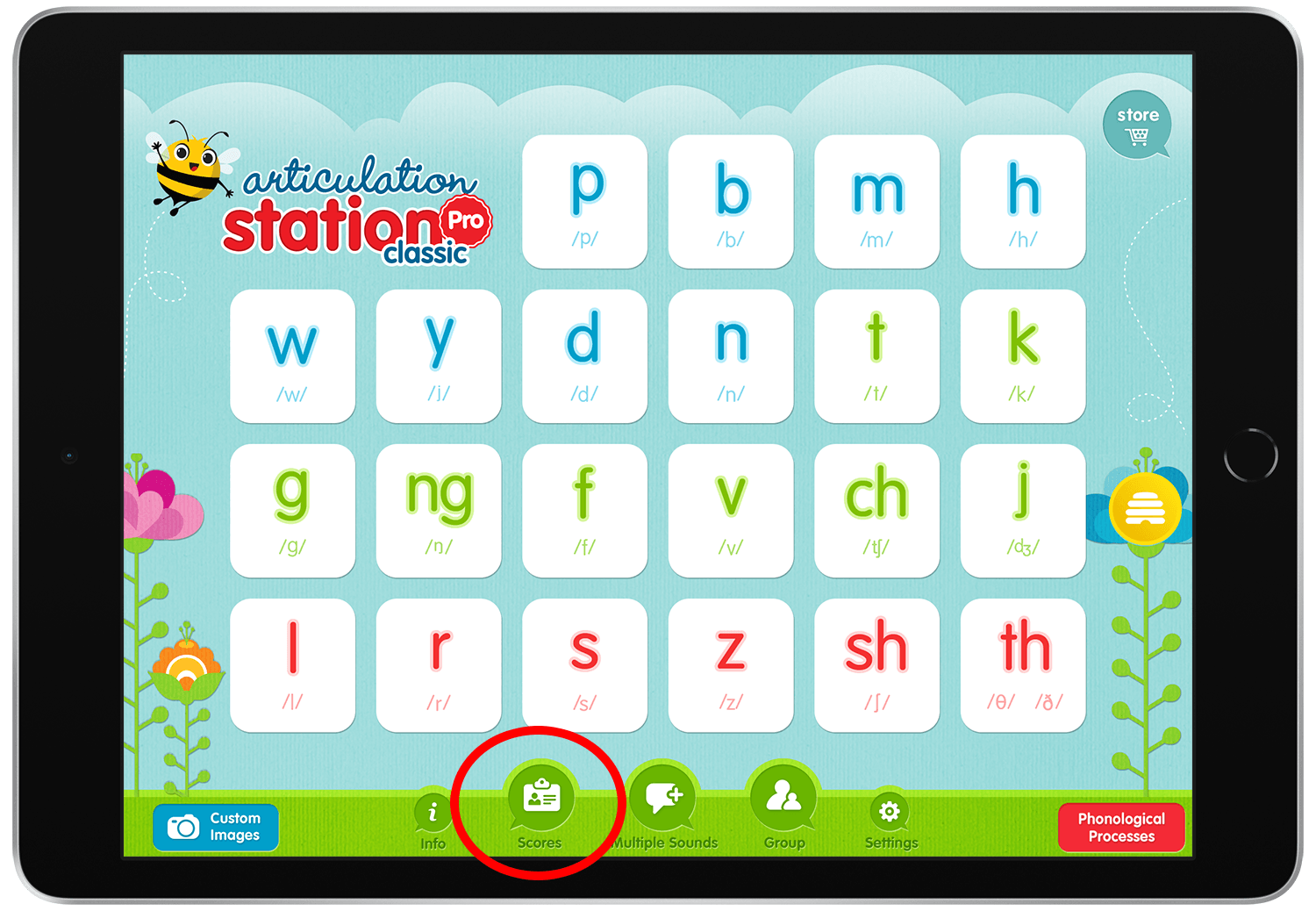
Open Articulation Station Classic or Articulation Station Pro Classic and tap the "Scores" button.
Step 2.
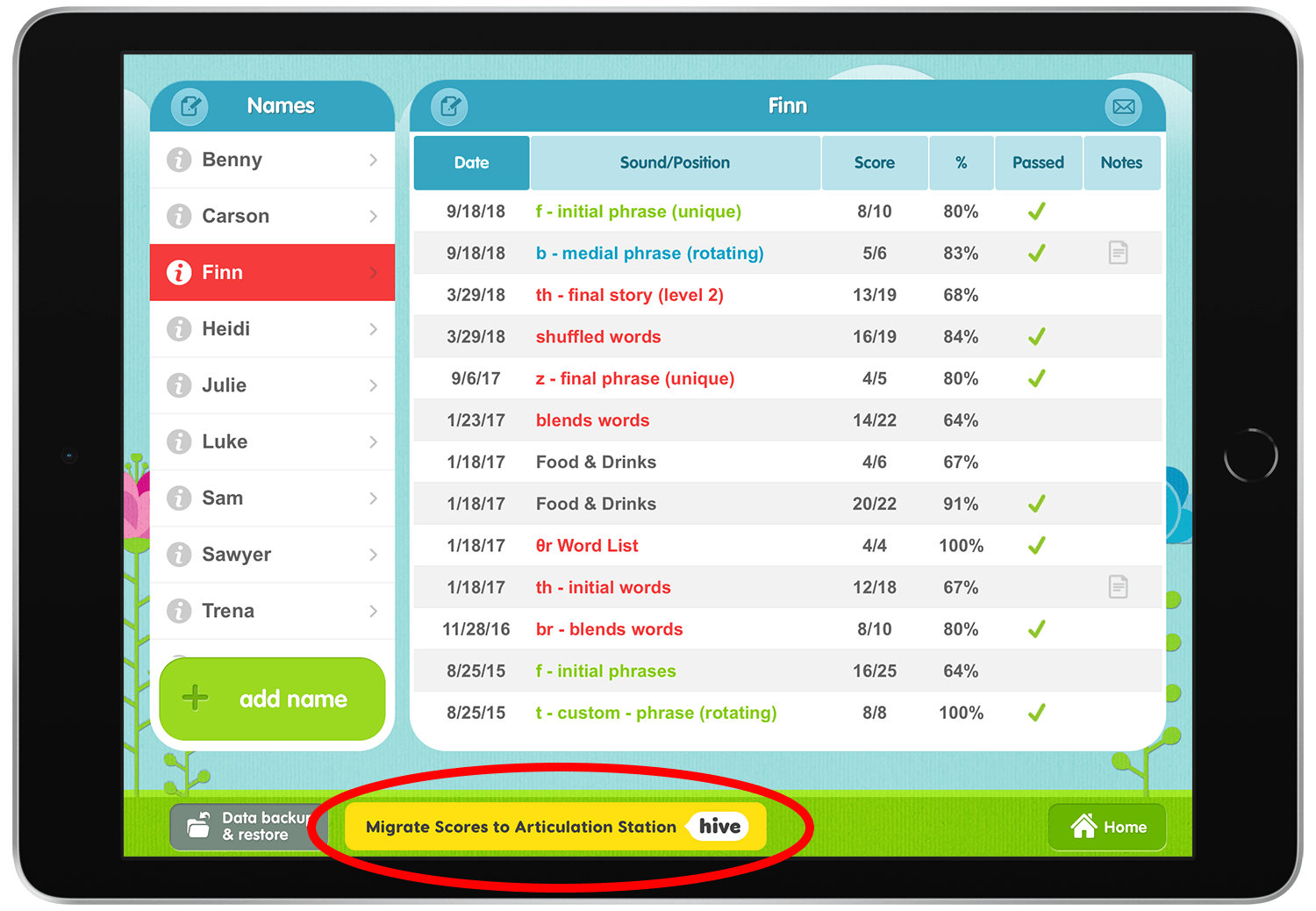
Tap the "Migrate Scores to Articulation Station Hive" button. This will open Articulation Station Hive and the migration process will begin automatically.
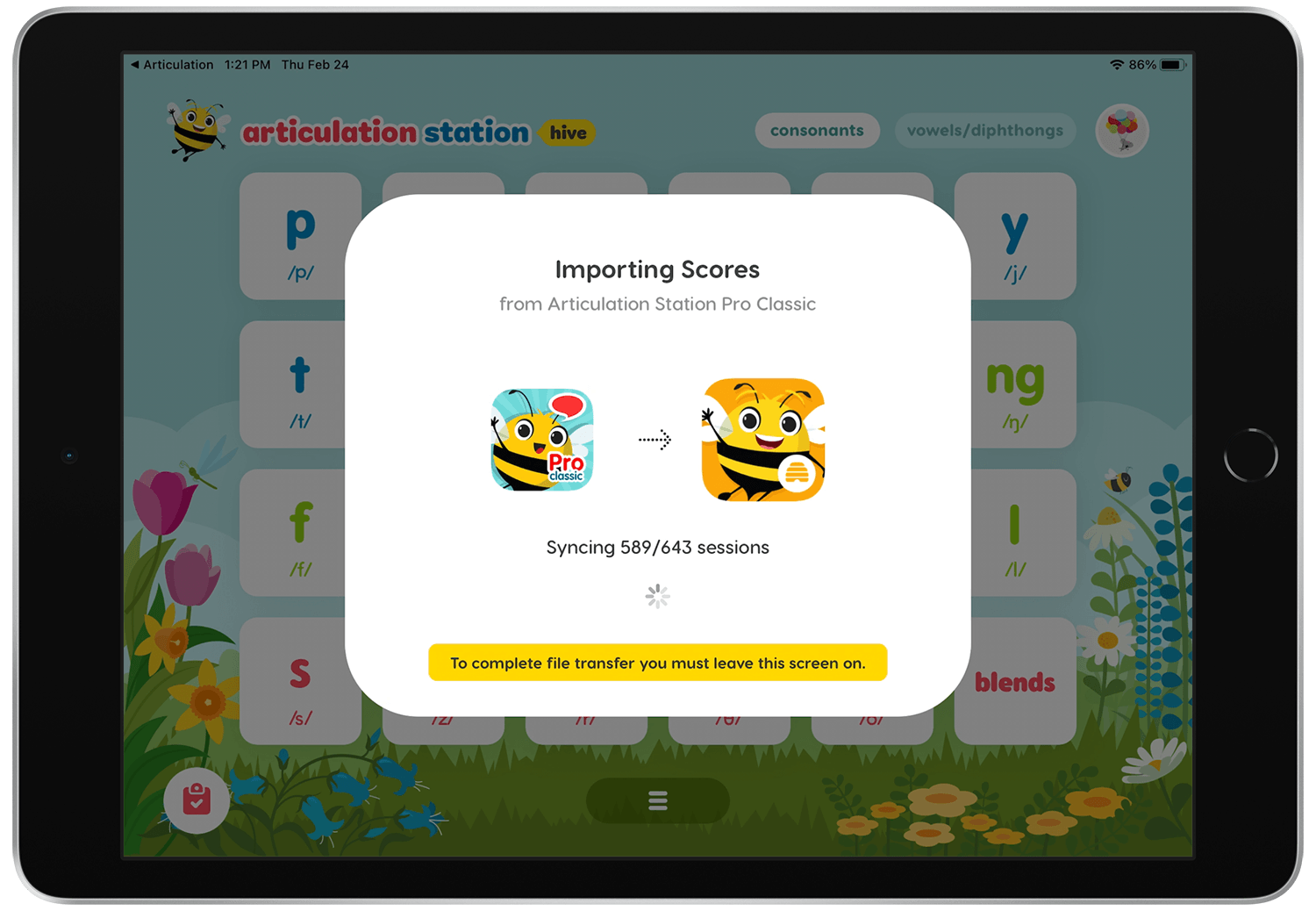
Migration time can take awhile if there is a lot of saved data. For example, migrating 643 sessions took about 5 minutes. Migration time also depends on how many audio recordings are saved within each session.
Be patient and do not let your device go to sleep during this process. It will be worth it!
Step 3.
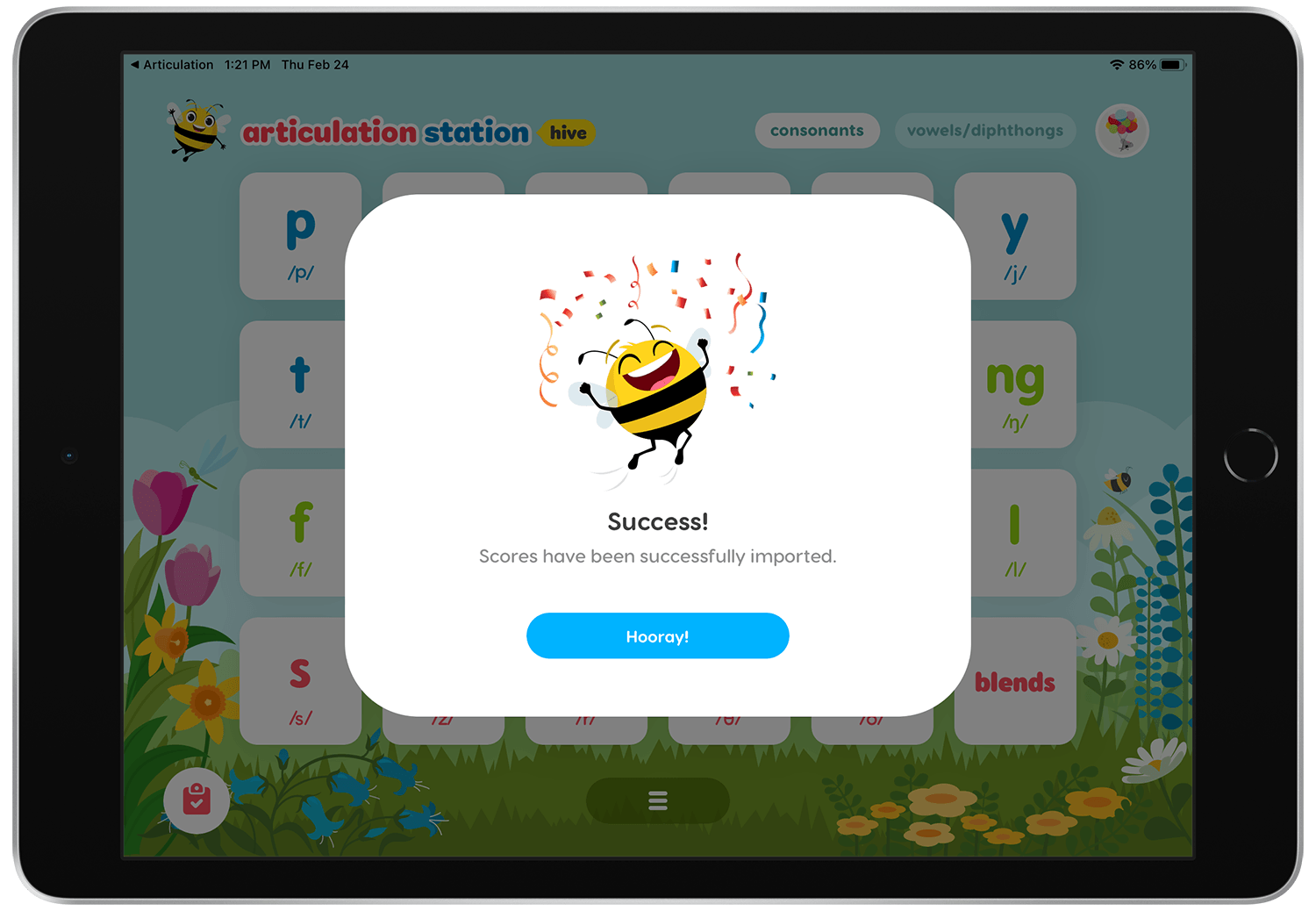
When the migration is complete tap the "Hooray!" button.
Step 4.
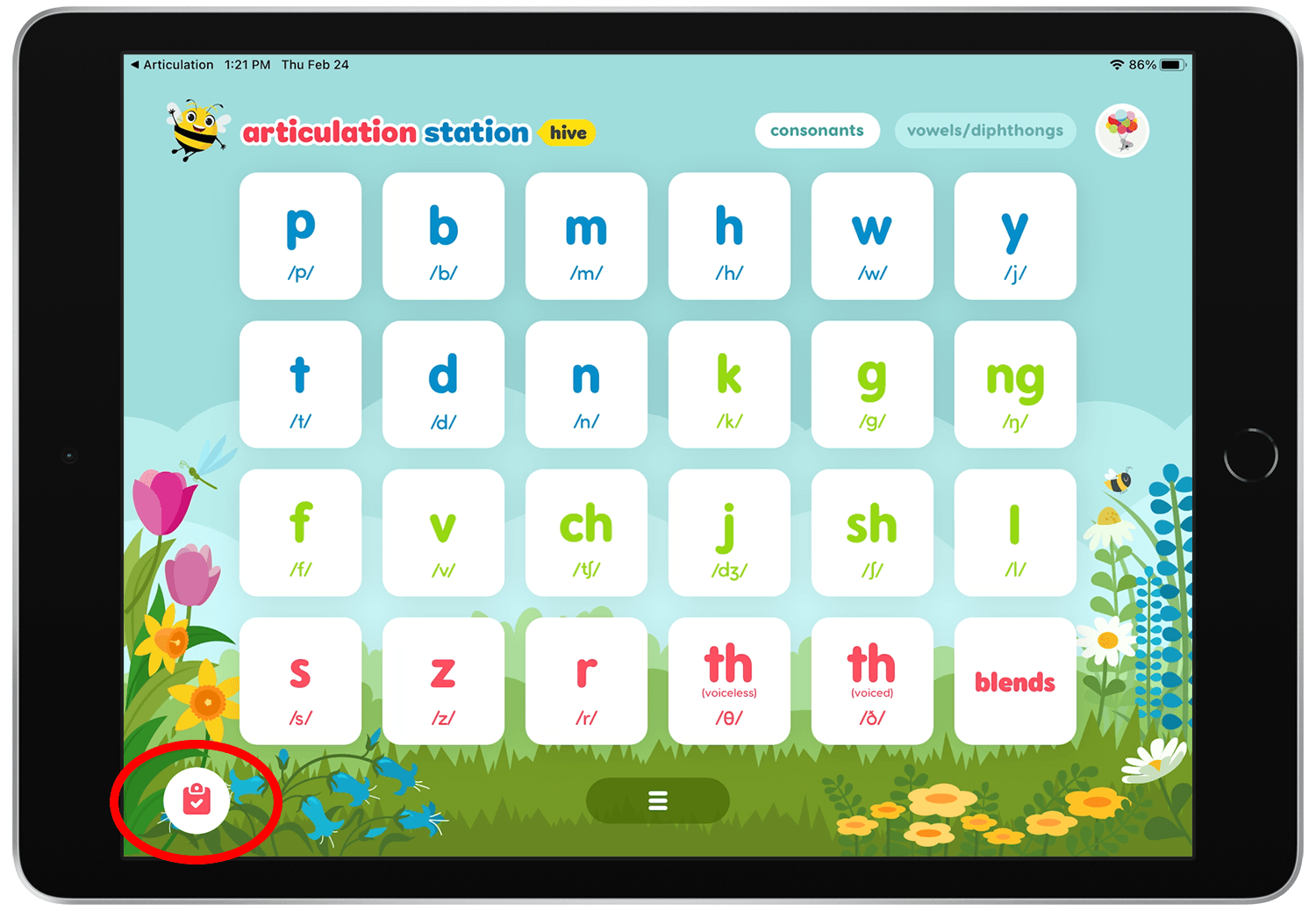
Tap the "Scores" button to see the data that was migrated. Note: Data migration does not replace or delete any students that existed in Articulation Station Hive prior to the migration.
Step 5.
Enjoy your new visualized data with graphs in Articulation Station Hive!