

In all of our "Classic" apps, we recommend that you keep your data backed up regularly in the event that something happens to your device or the app. This applies to the following apps:
Articulation Station Pro Classic
Articulation Station Pro Español
Articulation Test Center Pro
Little Stories Pro currently has no data backup option.
*Note: In Articulation Station Hive or any apps available within the Little Bee Hive subscription you do not need to manually backup and save your data. It is done automatically and safely for you and encrypted as a cloud backup that is accessible at any time by you only.
There are 2 options to backup and save your app's data:
Option 1. iCloud Backup
To backup your saved data to iCloud in the Classic apps listed above, watch our video tutorial. The video shows Articulation Station Español as the example but the process is the same for the other apps.
Option 2. Local Backup (to save to a computer)
You can also make a backup file on the iPad and then transfer the file to your computer or other backup service for safe keeping.
Step 1.
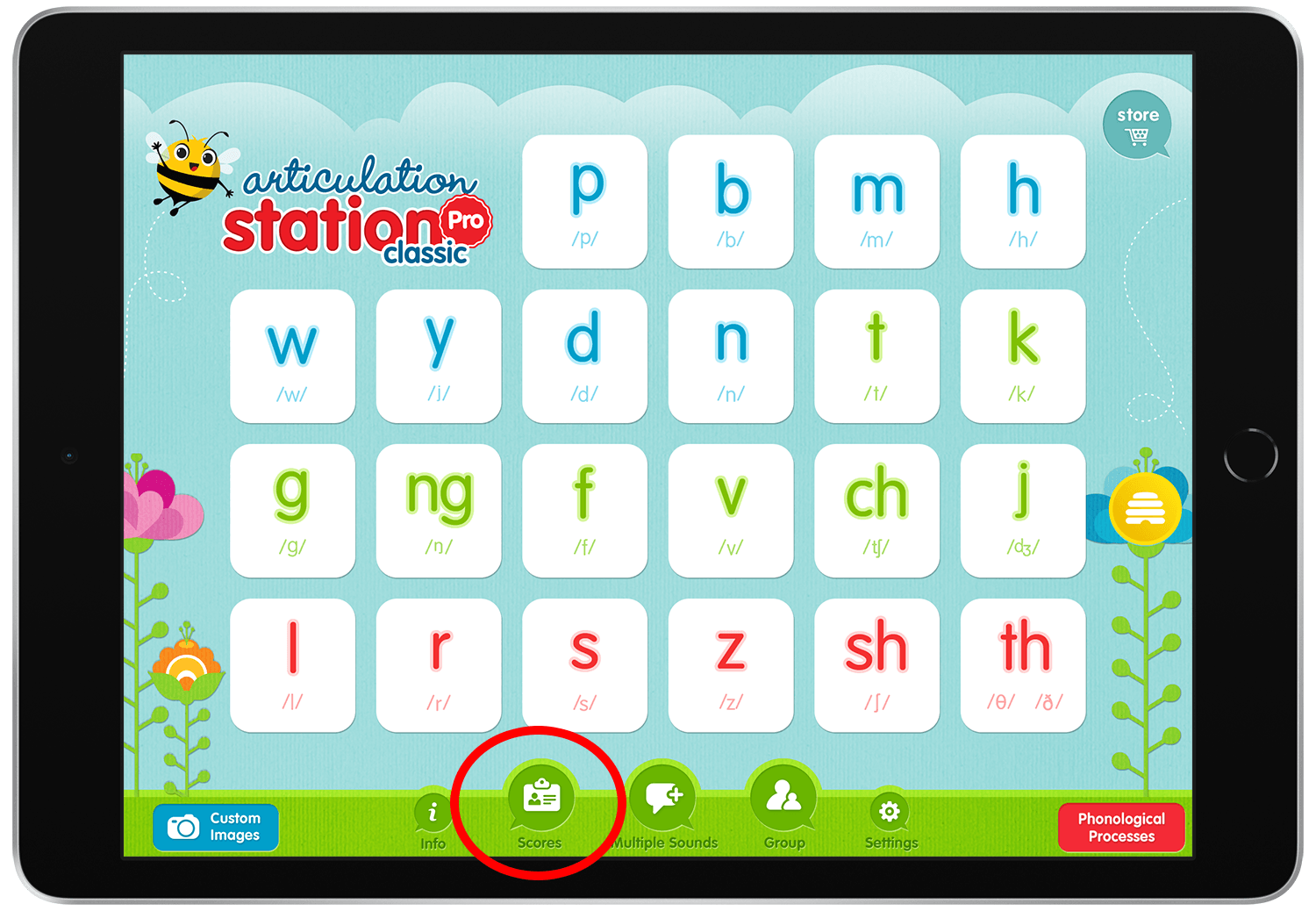
To create a local backup file open the app on your iPad or iPhone and tap on the "Scores" button at the bottom of the screen.
Step 2.
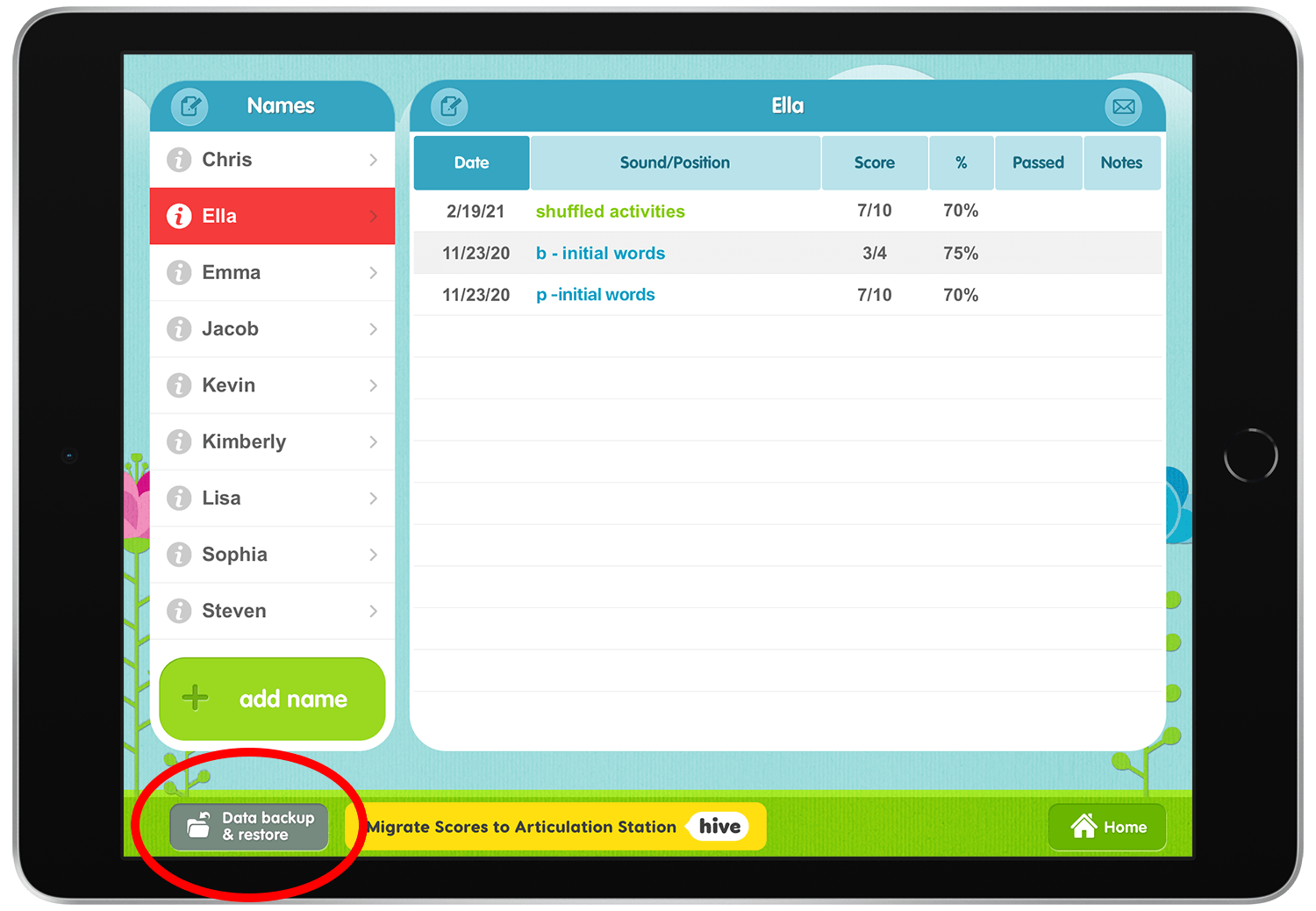
Tap "Data backup & restore".
Step 3.
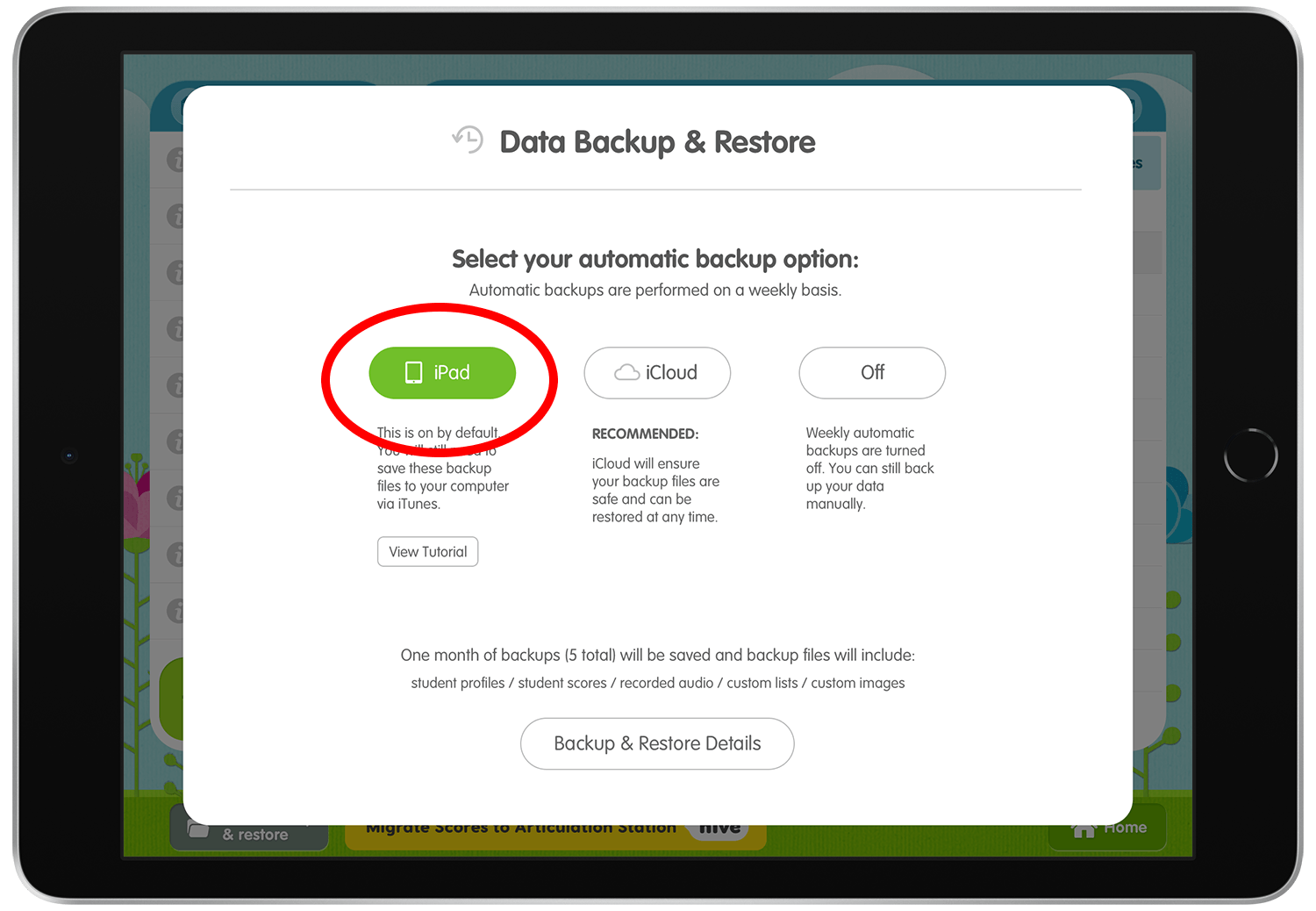
Tap the iPad backup option.
Step 4.
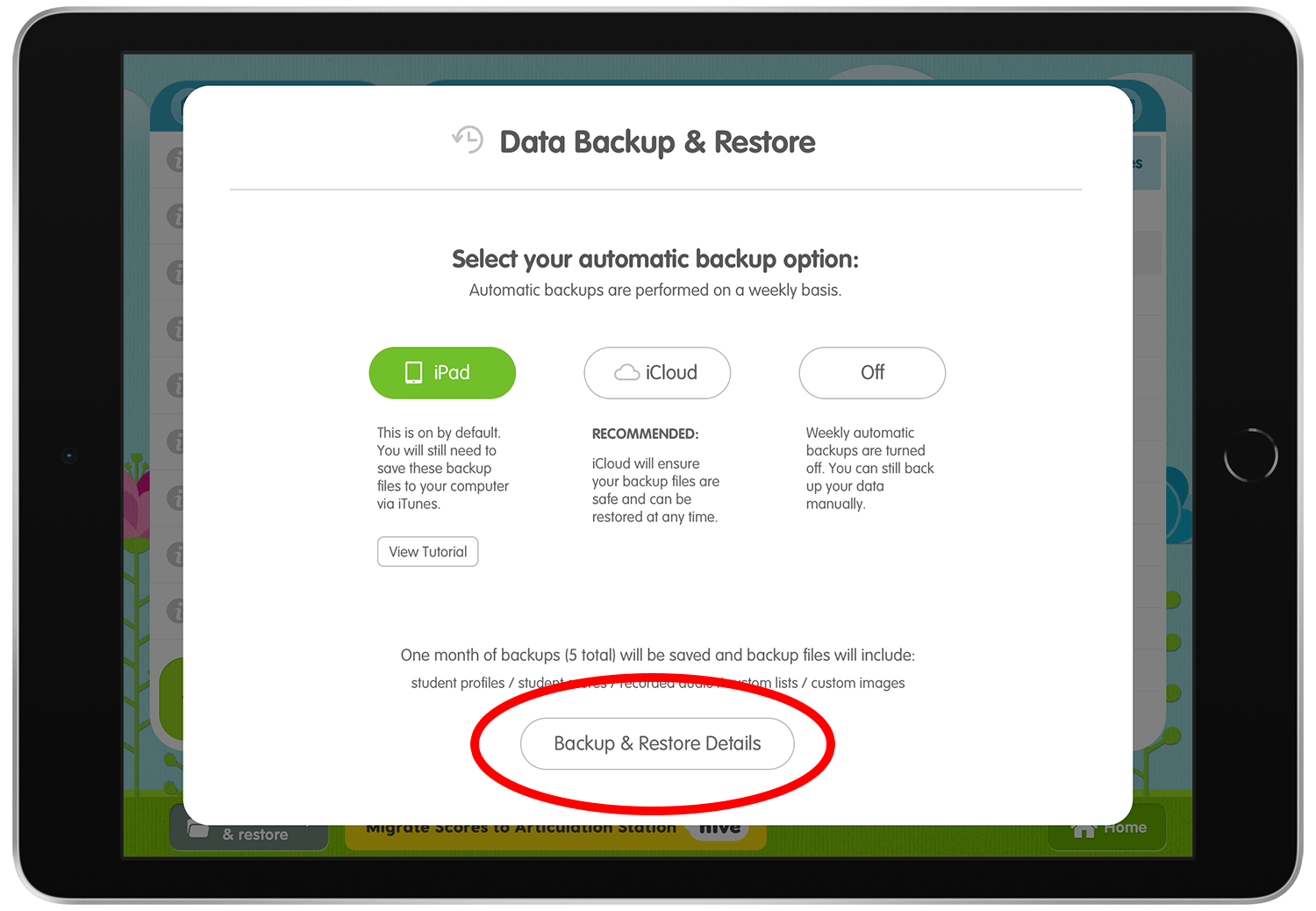
Tap "Backup and Restore Details".
Step 5.
Tap "Create Backup" to create the backup file of current data saved in the app.
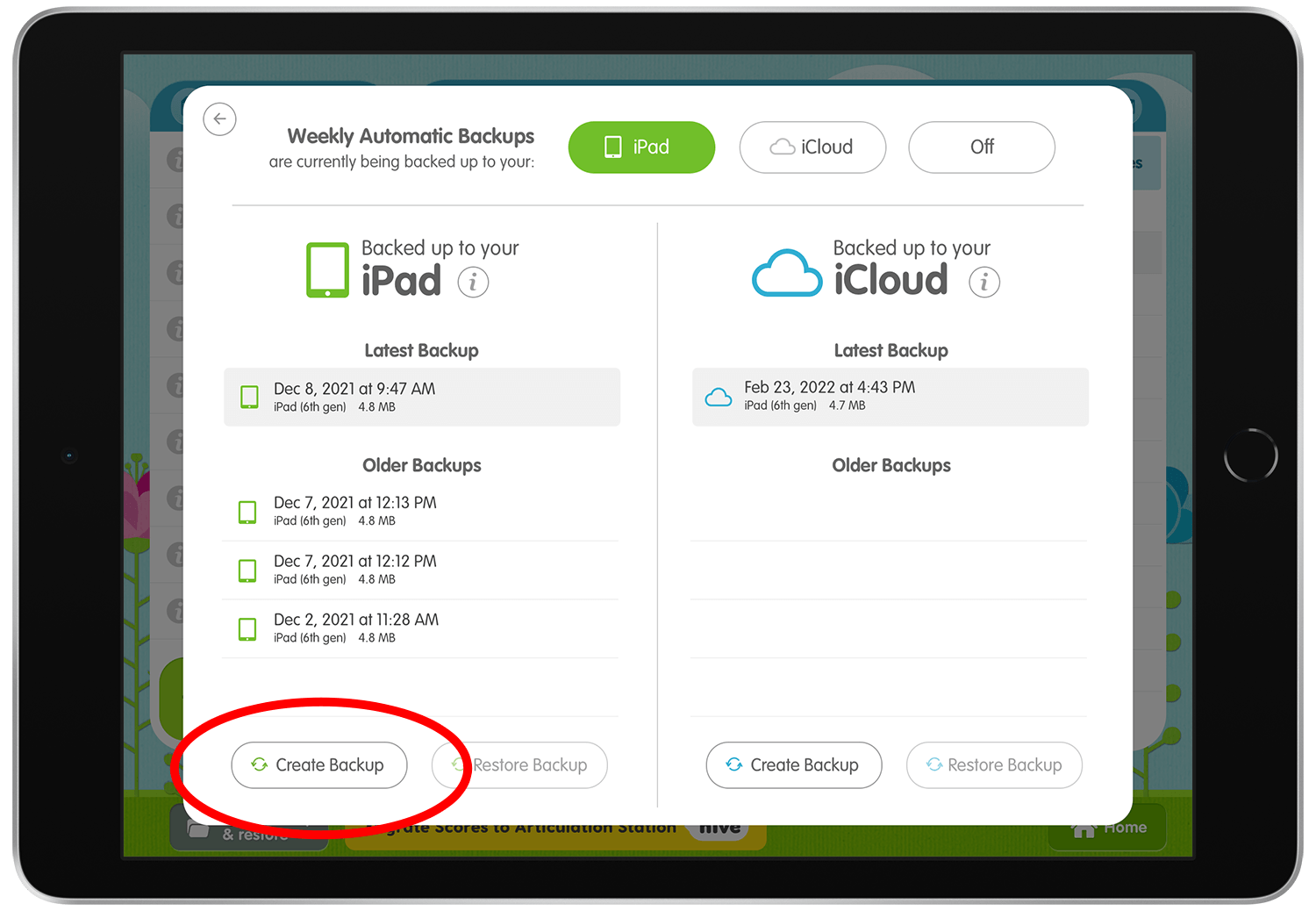
Step 6.
The backup file will get compiled and be shown in the "Latest Backup" section. If you have a lot of data to backup this process may take a minute.
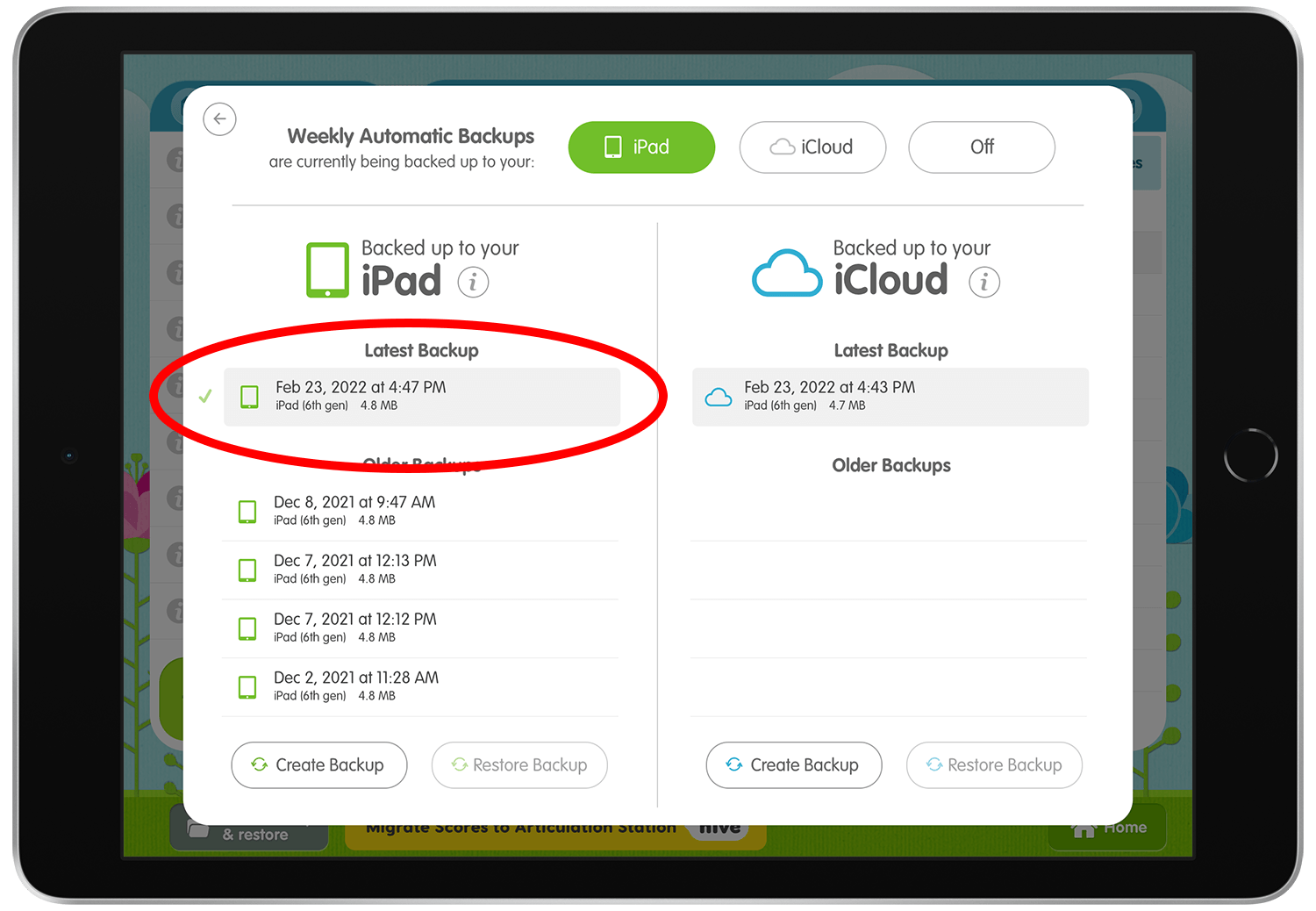
Step 7.
Once the backup file has been compiled and shows up in the "Latest Backup" section, connect your iOS device to your Mac computer. For information on how to connect your iPad or iPhone to your computer using a cable click the link below.
Connect iPad and your computer with a cable
Step 8. Transferring the backup file to your Mac computer
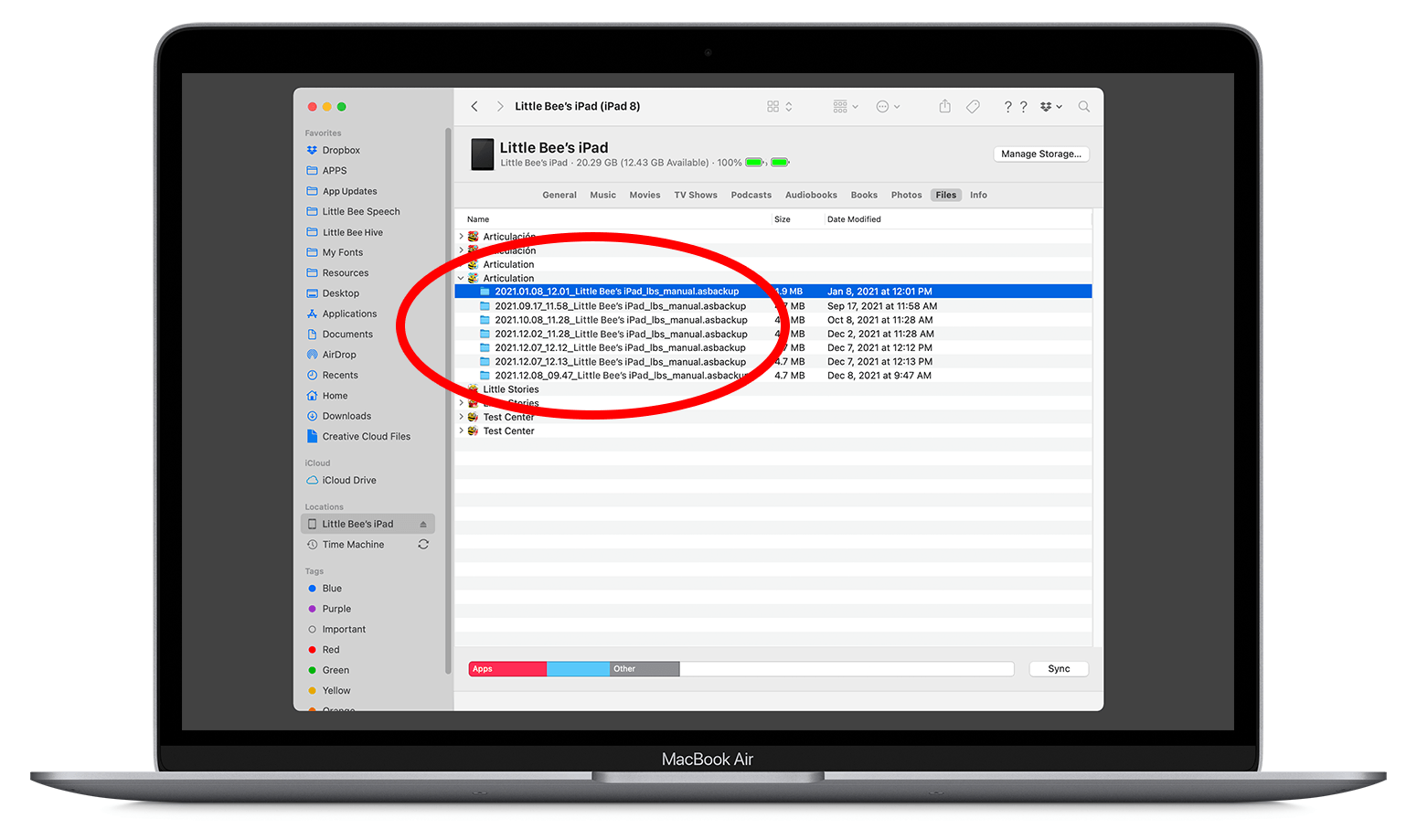
Once your iPad or iPhone is connected to your Mac, open a Finder window on your Mac and click on your iOS device name in the left sidebar.
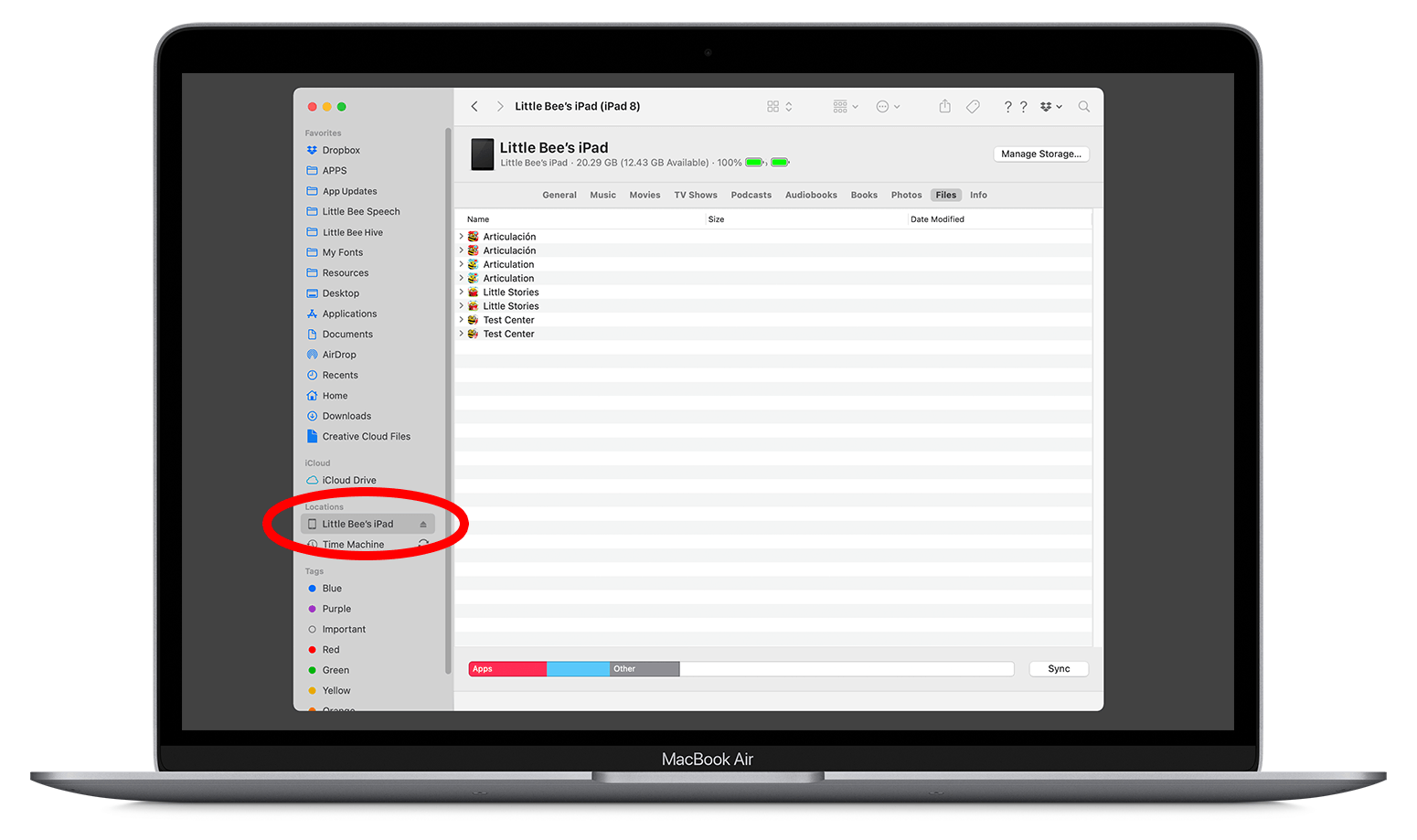
Step 9.
Click "Files" in the top right navigation bar. This will show the list of apps on your iOS device that have file transfer capabilities.
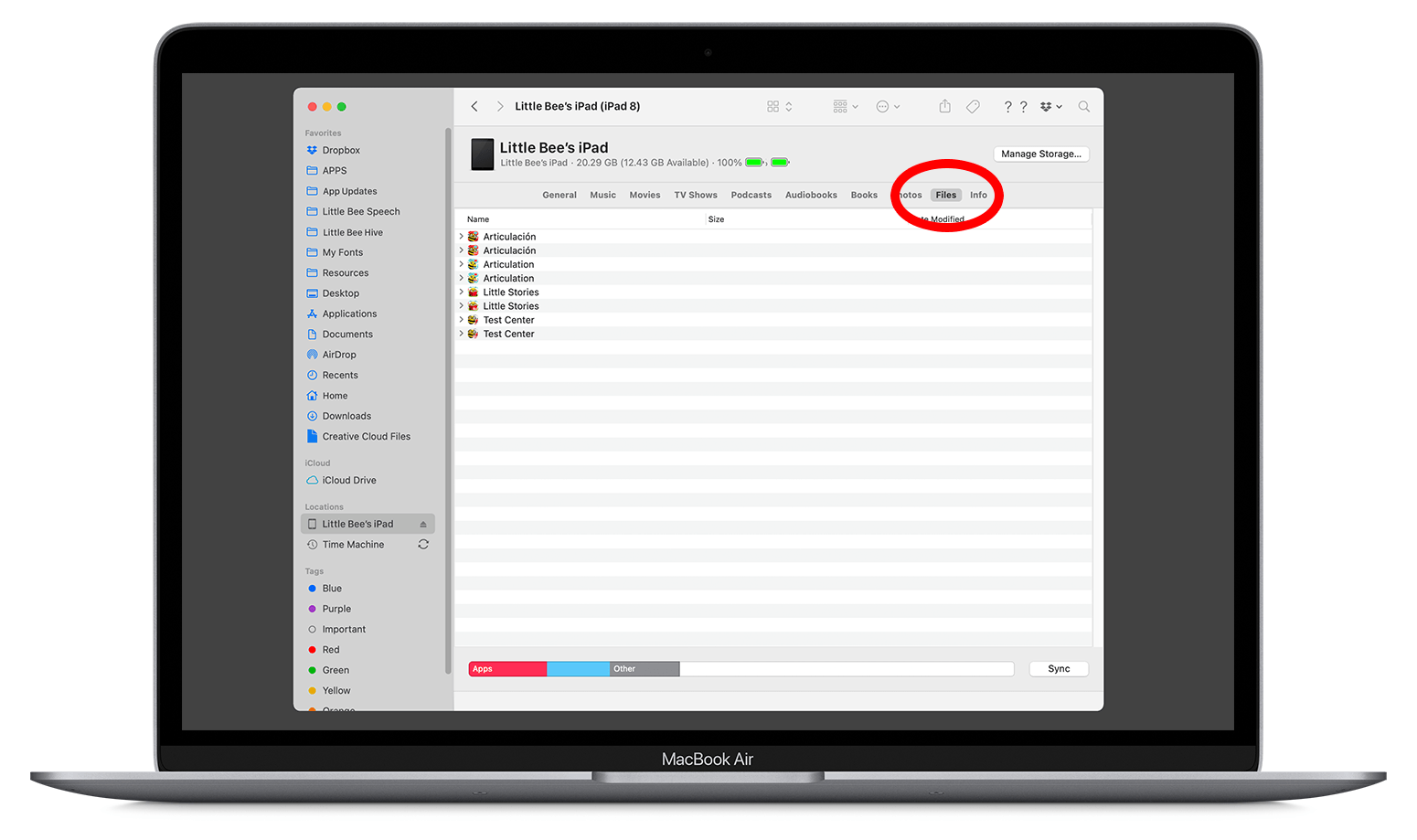
Step 10.
Then click the dropdown arrow next to the app that you created the backup file in to expand and show all the backup files available.
Click on the backup file you created and drag that folder to your computer desktop. You can then transfer the file to Dropbox or another backup service for safe keeping.
For additional information on how to backup to your Mac or PC click the links below.
How to back up your iPhone, iPad, and iPod touch with your Mac
How to back up your iPhone, iPad, or iPod touch with iTunes on your PC